
Many friends who build websites with WordPress have encountered situations where updating the WordPress core, themes, or plugins causes compatibility issues, leading to site errors or inaccessibility. Especially for beginners, when faced with update crashes and site unavailability, they often feel helpless. The newly launched WP update feature in WP Panel 1.3.0 perfectly solves such update failure problems.
In version 1.3.0, WP Panel has comprehensively upgraded and improved its WordPress update management capabilities, fully supporting a controllable update process for the WordPress core, plugins, and themes, transforming the traditional „one-click mindless update“ intoauditable, rollback-capable, and centrally manageableprofessional operations capabilities.
The core goal of this version update: to reduce manual operation errors, improve batch maintenance efficiency for multiple sites, and significantly lower the risk of site failures caused by update failures.
Complete Update Process
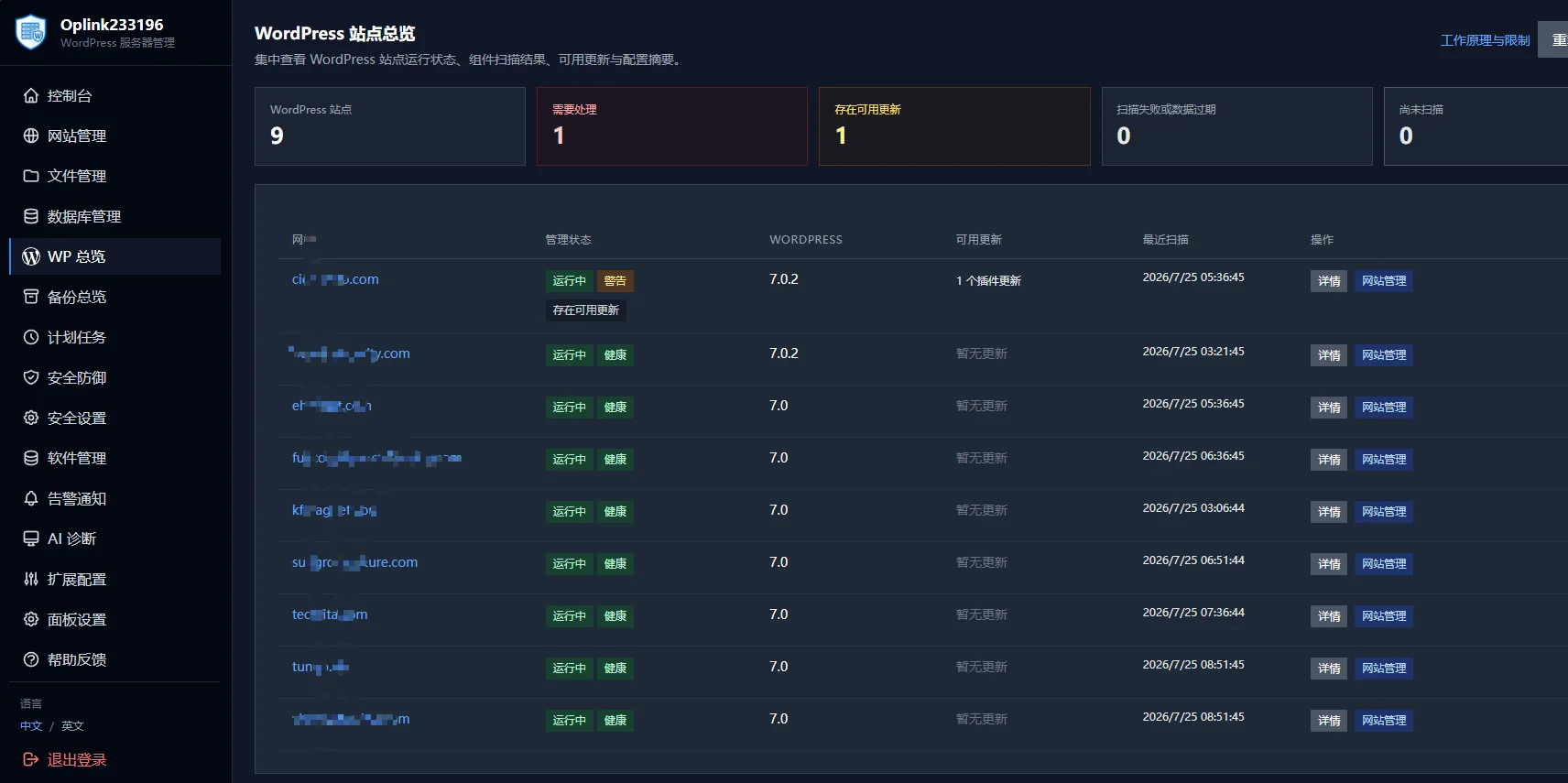
The new 「WP Overview」 interface can uniformly list the update status of all WordPress sites on the server, allowing you to view the update needs for the core, plugins, and themes of all sites in one place, eliminating the tedious process of checking each site individually.
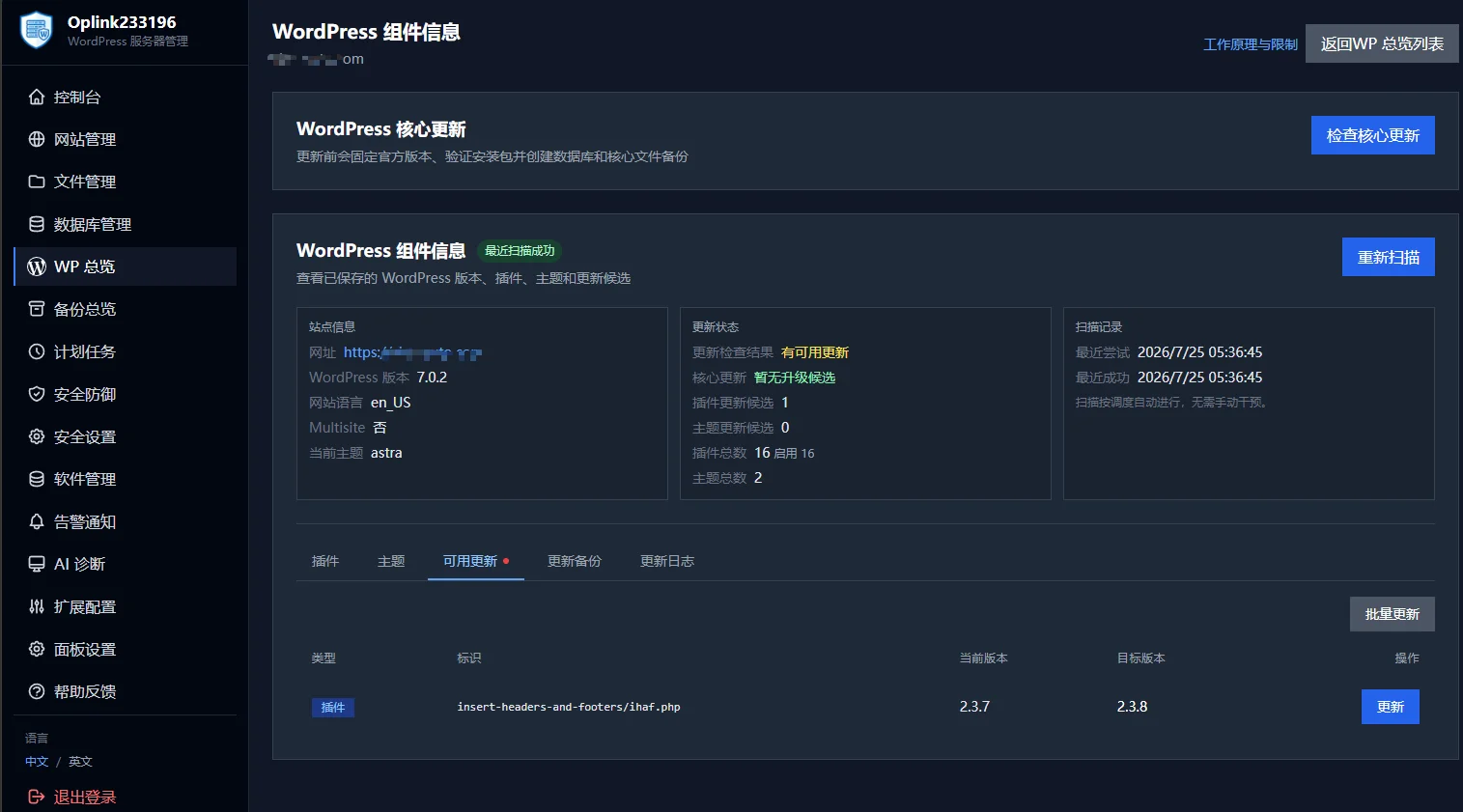
Click the 「Details」 button for the corresponding site to enter the component information details page, where you can clearly view the basic configuration of the current site, the version of each component, and real-time update status, accurately grasping every updatable item. For example, the site in the screenshot has one available plugin update.
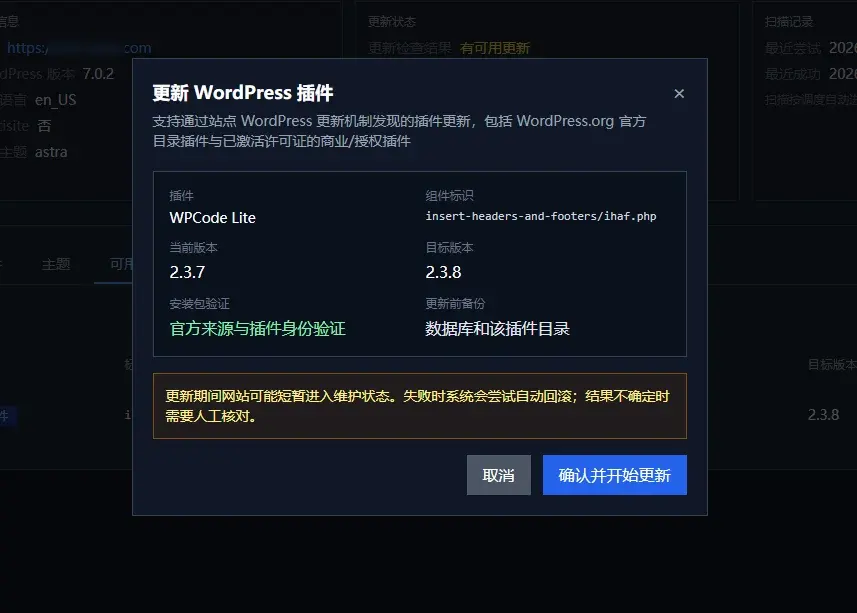
After clicking the 「Update」 button, the system will automatically display an update preview interface,automatically backing up the site database and the corresponding updated plugin/theme directory files before the update.If the update fails, or if the site health check is abnormal after the update, WP Panel will automatically call the backup files and database to perform a rollback recovery.
This means that if a compatibility issue occurs during an update, causing the site to be inaccessible, you don't need to worry even if you cannot access the WordPress admin panel. WP Panel will automatically detect the update status, and if it finds that the site cannot be opened or returns a non-200 status code, it will automatically roll back, maximizing site availability.
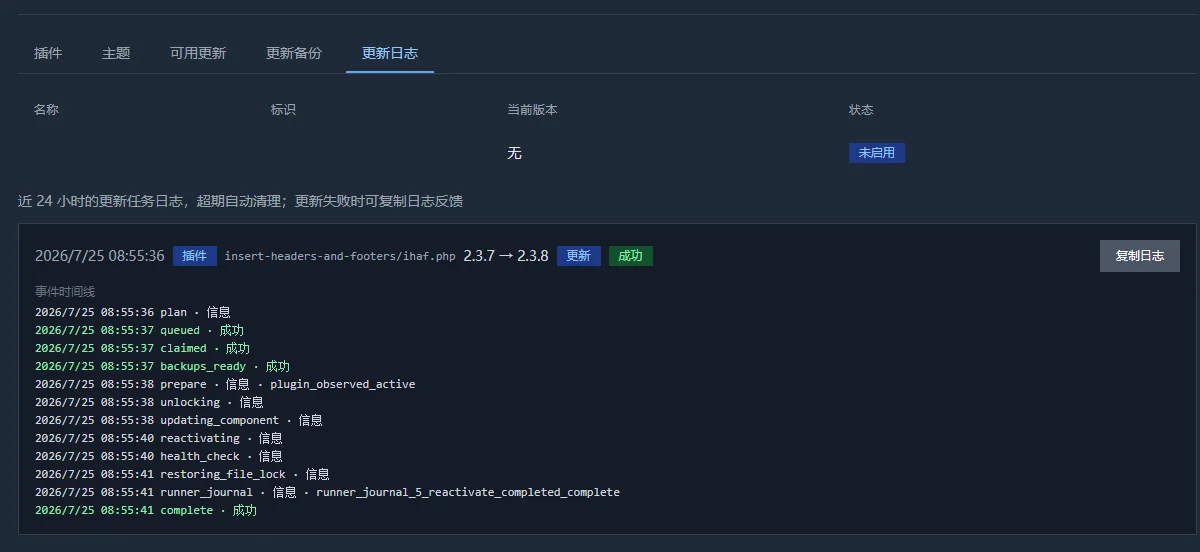
At the same time, there is an update log. If the update fails, you can conveniently view the reason in the log interface or provide the log to the WP Panel developer (that is, me) for troubleshooting.
Differences Between WP Panel Updates and Native WordPress Backend Updates
WP Panel's update featureis implemented based on the WordPress official Upgrader mechanism(compatible with the official update logic for core, plugins, and themes). The core differences lie insecurity protection and operations experience optimization.。
Before executing the update, WP Panel first fetches the update package locally on the server and performs integrity and structure verification (including version, source, and signature/consistency checks), then proceeds to the formal update process, and providespre-update backup(files and database optional) to reduce the cost of abnormal recovery.
At the same time,file lock handlingis also integrated into the automation chain: the update task automatically performs unlocking, updating, and re-locking without manual intervention, reducing the risk of misoperation.
Compared to manual step-by-step operations in the WordPress backend, WP Panel is more suitable for centralized operations scenarios in production environments in terms of process standardization, traceability, and abnormal rollback capabilities.
The complete update process is as follows:
- Pre-check: Read the current version of the site, target candidate version, environment compatibility (PHP/MySQL), and official download metadata;
- Preview confirmation: Display available update version, official source, backup scope, and risk warnings;
- Confirmation submission: Submit with a confirmation token to avoid accidental triggers;
- Task-based execution: Create an update task in the background and execute it asynchronously; the interface polls the task status to view progress;
- Execution phase: Unlock files, apply updates, health check, restore lock, and exit maintenance;
- Failure rollback: Support rollback of database and core files, restoring to the pre-update state as much as possible.
How to use WP Panel?
WP Panel is a server management panel specifically developed for WordPress website building environments, serving as a lightweight alternative to Baota Panel and 1Panel.
To use WP Panel, you need a VPS. If you don't have one yet, you can first purchase a VPS from Naibabiji'sVPS Recommendationsarticle, then copy the one-click installation command below via SSH and press Enter to automatically install.
apt-get update && apt-get install -y wget ca-certificates && wget -qO- https://raw.githubusercontent.com/naibabiji/wp-panel/main/install.sh | bashFor detailed installation requirements, tools, and installation commands for domestic servers, please refer to the official:Help page