
SiteGround is a foreign virtual hosting service provider, and their reputation abroad is even higher than that of hostblue. Previously, Naiba also sharedSiteGround Registration Tutorial for Foreign Trade WordPress Website Managed Hosting和SiteGround One-Click WordPress Installation Tutorial, this article will share with youthe method and steps to enable Memcached acceleration on SiteGround.
What is Memcached Acceleration
Memcached is a caching technology that accelerates database calls, API calls, and page calls by storing data and objects in the server's memory, thereby reducing the number of database queries. Generally speaking, after you install WordPress, when you set up the theme, plugins, and normally publish articles, the number of database queries for a page is estimated to be around 80. After using Memcached acceleration to cache database queries, the number of queries can typically be reduced by half depending on the actual situation. If your website heavily relies on database queries, using Memcached should significantly improve its performance.
SiteGround Enables Memcached Acceleration
How to enable Memcached acceleration on SiteGround?
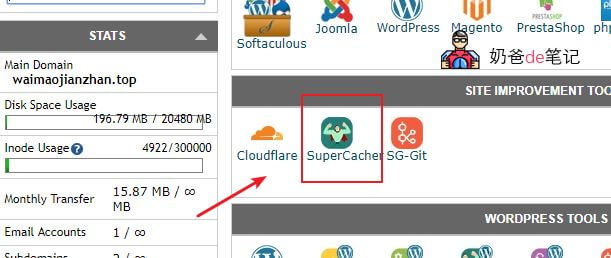
Log in to your SiteGround cPanel, find the SuperCacher icon, and click to enter.
Switch to the Level 3: Memcached tab and select to turn it on.
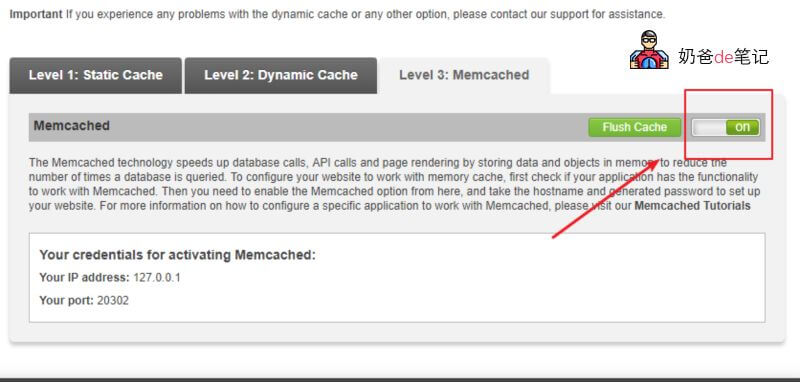
At this point, the Memcached function on the SiteGround server is enabled.
SiteGround Enables Memcached Acceleration
The above steps only enable the Memcached acceleration feature. How do you activate it?
To activate Memcached acceleration, you need to operate within the WordPress admin dashboard.
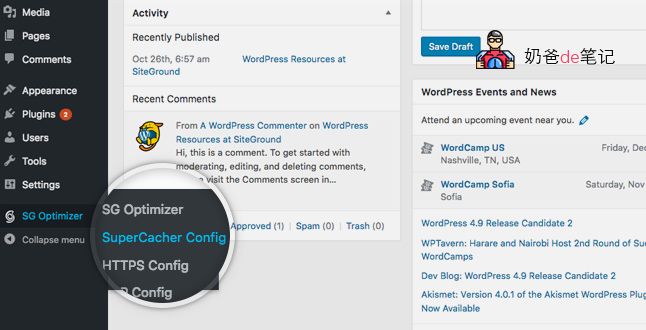
After logging into the WordPress admin dashboard, find the SG Optimizer tab and enter.
Scroll down to the bottom of the page to findMemcached settingspanel. It has aON / OFFToggle to enable and disable the Memcached service. If you encounter an error,请说„Please first enable Memcached from your cPanel!“This means you have not enabled the service from cPanel. First, proceed with the previous step to enable Memcached.
Once enabled, the Memcached acceleration feature is activated, as shown below.
 Then you can check the effect on the front end of your website; the access speed should change to some extent.
If you want to know how many times your page queries the database, you can use the following method:
Display Database Queries, Generation Time, and Memory Usage in WordPress