Whether you are a WordPress site administrator or a beginner, after usingWordPress installationAfter building a website, an Uncategorized category is generated by default. This category is not aesthetically pleasing and is detrimental to website SEO and user experience. How to delete this Uncategorized category? There are several methods as follows.
Method 1: Rename
Simply rename the category directly.
Method 2: Create a new category, then move all articles from Uncategorized to the new category. If the Uncategorized category is empty, it will not be displayed on the front end.
Of course, if you just want to hide articles under the Uncategorized category from displaying on the front page, refer to this article:How to exclude posts from specific categories on the WordPress homepage
Method 3: Set a default category and then delete the Uncategorized directory
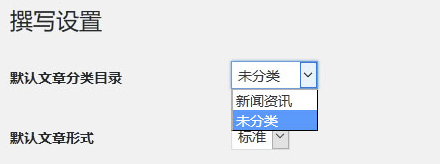
First, go to the settings in the website Admin Dashboard and change the default category directory to another one. Then, you can delete the Uncategorized directory. (To delete the Uncategorized category in WooCommerce, do the same: first modify the default product category, then delete Uncategorized.)
Method 4: Code filtering
By adding code to the Theme, you can hide Uncategorized on the Frontend, but it will not affect the functionality.
What is the Uncategorized Category?
In WordPress, when it comes to organizing content, tags and categories are two excellent and commonly used features.
Categories are called taxonomies, used to group and select related content together. Although tags are completely optional, the default WordPress category is mandatory and cannot be deleted.
In other words, when you write a post, you can fill in tags or not, and it won't have any impact. But you must select a category; if you don't, the default 'Uncategorized' will be used.
The „Uncategorized“ category is neither aesthetically pleasing nor beneficial forSEO Optimization,
Why Delete the Uncategorized Category?
There are two main reasons to consider deleting the „Uncategorized“ Category directory from WordPress: improving your website„s quality and enhancing the reader“s user experience.
#1 Improve Your Website Quality
Frequent appearance of the term „Uncategorized“ can make your website look unprofessional, careless, or negligent. If most of your posts are listed as „Uncategorized“, it clearly indicates a lack of attention to editing your posts.
Most importantly, improperly categorized content will lack logical consistency. The frequency of this term will distract from your website content and reduce the quality of your site.
#2 Enhance Reader User Experience
The „Uncategorized“ category creates significant difficulty for readers navigating your content. Imagine walking into a library because you need some books. You browse the shelves in the „Business“ section looking for marketing books. You see only the name „Uncategorized“ on every shelf, which should be named „Sales“, „Marketing“, or „Finance“.
You would feel frustrated while searching for your target books, and you wouldn't want to visit that library again. The experience is the same when your visitors browse your website and cannot identify similar or related content.
A high-quality website should have a logically clear order in its content. Don„t let the default “Uncategorized„ category harm your website quality and prevent readers from effectively browsing your site.
Changing the default category to one relevant to your website content plays a crucial role in improving website professionalism and enhancing user experience.
Although we cannot delete the default category because WordPress always requires your site to have one, there are other methods to rename the „Uncategorized“ category or set a new default category.
How to delete the Uncategorized category from WordPress
Let's take a look at the several methods available to address this Uncategorized Category directory.
#1 Rename the default category
Using this method, you can change „Uncategorized“ to a name more relevant to your website content.
To rename the default category, you only need to follow 6 simple steps:
- Go to Posts → in the WordPress DashboardCategories
- FindUncategorizedterm
- ClickEdit
- Enter the new name for the category
- 在In Edit CategoryChangeSlug
- ClickUpdate
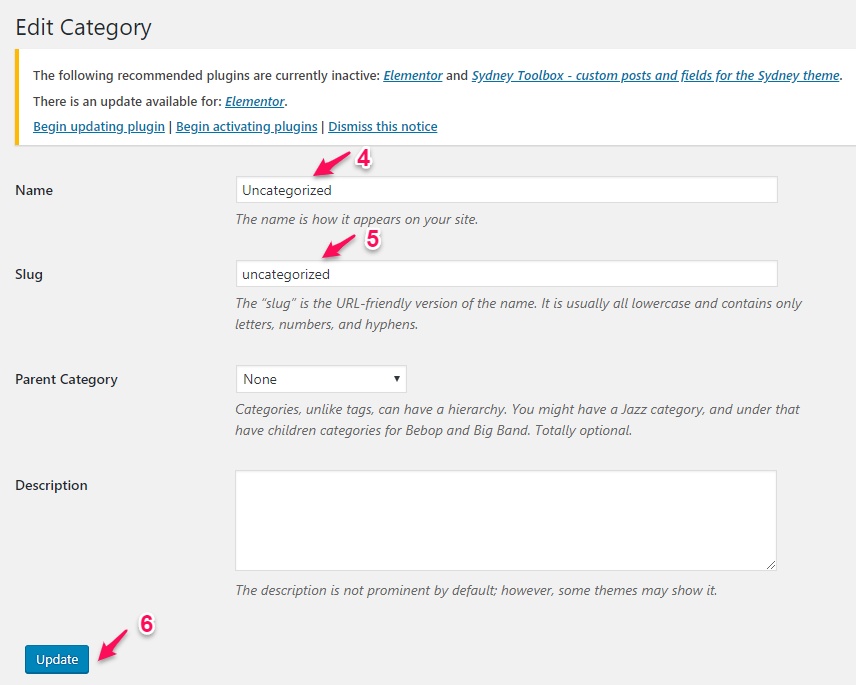
Now, your default category will display as the new name you have changed, instead of „Uncategorized“.
#2 Create a new default category
Unlike the method above, this method will utilize an existing category.
If your site has multiple post categories, you can select a new default category from the „Default Post Category“ list without creating a new one.
- Go to Posts → in the WordPress DashboardCategories
- Navigate toAdd New Category
- 在In the Name fieldEnter the desired default category'sName
- Enter Slug
- ClickAdd New Category
- Go toSettings→ Write
- FindDefault Post Category
- Select the desired default category from the list
- ClickSave Changes
From now on, whenever you forget to set a category for a post, WordPress will automatically assign it under the new default category you created for posts.
#3 Delete the Uncategorized category after setting a new default
After you have performed the second method above to set a new default category, you will find that you can delete the default 'Uncategorized' category when you re-enter the post categories section.
#4 Code filtering
If you want to filter out the 'Uncategorized' category from displaying on the frontend but still keep it selectable, you can add the following code to your theme:
/**
* 隐藏未分类
* @link https://blog.naibabiji.com/skill/remove-uncategorized-wordpress.html
*/
add_filter('get_terms', 'naibabiji_hide_product_uncategorized', 10, 4);
function naibabiji_hide_product_uncategorized($terms, $taxonomies, $args , $term_query)
{
// 要隐藏的分类类型
$hide_taxonomies = ['product_cat','category'];
// 要隐藏的分类slug
$hide_term_slugs = ['uncategorized'];
if (array_intersect($hide_taxonomies, $taxonomies) && !is_admin()) {
foreach ($terms as $k => $term) {
if (in_array($term->slug, $hide_term_slugs)) {
unset($terms[$k]);
}
}
}
return $terms;
}
Is it better to rename the „Uncategorized“ category or set a new default name?
You might ask which option is better for your site. Generally, renaming the default category is more suitable for new websites.
In detail, changing the name „Uncategorized“ will lead to adjustments in slugs and URLs. Since you already have many posts, this could negatively impact SEO. One thing to mention is that when you change the slug in a category, it must be different from the slug in tags within the same post.
On the other hand, if your website has already grown significantly, choosing the second option (creating a new default category) makes more sense for you. Changing the default category usually does not require any changes, and you can leverage existing post categories.
How to delete the Uncategorized product category in WooCommerce.
If you run a business using WooCommerce, you may encounter the same issue. WooCommerce also has a default product category called „Uncategorized“. Once you add a new product and forget to categorize it, the product will belong to the „Uncategorized“ category.
WooCommerce product categories are very powerful, allowing you to easily control how products are presented and organized. It is crucial to make full use of this feature.
While other product categories can help customers conveniently browse your products, the „Uncategorized“ category is useless. You should take further steps to eliminate this annoying term, thereby more effectively facilitating your customers.
In fact, the solution in WooCommerce is theoretically the same as in WordPress. However, it has a different interface from WooCommerce and WordPress. We will show you an effective method to remove the 'Uncategorized' category in WooCommerce by following these 5 steps:
- Go toProducts → Categories
- Select the category you want to make the default
- ClickSet as Default
- FindUncategorized
- ClickDelete
In addition to this method, the code filtering function mentioned above can also be applied to WooCommerce.
Now it„s time to delete the “Uncategorized„ category!
In WordPress, categories are considered key elements for clarifying your website content. Don't let annoying little categories interfere with your site development or readers' browsing.
By using the methods above to remove the „Uncategorized“ category, you will never see any posts assigned to „Uncategorized“.
This article shows 4 effective methods to easily remove the „Uncategorized“ category in WordPress and WooCommerce. If you have any questions about categories in WordPress and WooCommerce, feel free to ask in the comment box below!