WordPress Installation Tutorial

WordPress Installation Tutorial: From Domain and Server to Website Backend Launch

This is a WordPress installation guide for beginners: first prepare the domain and server, then choose the installation method based on shared hosting, VPS, or panel environment, and finally complete backend basic settings, themes, plugins, and go-live checks.

  • Suitable for absolute beginners
  • Manual installation takes about 30 minutes
  • Covers VPS and shared hosting scenarios

What to prepare before installing WordPress

Most WordPress installation failures are not due to WordPress itself being difficult, but because the domain, server, database, and permissions are not ready.

Prepare the following 5 items before starting. If any item is missing, complete it first; do not jump directly to the installation wizard.

  • Domain registered and DNS manageable Later, you need to point the domain to the server IP, or configure DNS records as required by the hosting provider. Domain Name Guide
  • Server or WordPress hosting ready Shared hosting usually supports one-click installation; VPS requires preparing a panel, PHP, database, and site binding. VPS Recommendations Hosting Recommendations
  • Database information has been saved. Manual installation requires at least the database name, username, password, and database host.
  • Confirm whether filing is required. Domestic servers generally require ICP filing for formal domain binding and access; overseas servers usually do not require domestic filing.
  • Prepare for HTTPS and backup awareness. Enable HTTPS before going live, and back up before installing themes/plugins or changing configurations.

Which installation method should you choose?

Don't jump straight into manual installation steps. First, determine your hosting type and choose the path that is most convenient and least error-prone.

Comparison of common WordPress installation methods.
Installation methodWho It's ForRecommendation
One-click installation from hosting control panel.For users of SiteGround, Hostinger, shared hosting, etc.Recommended. The control panel automatically creates the database and files, best for beginners.
Installation via panels like Baota/WP Panel.For beginners who bought a VPS but don't want to type commands.Suitable as an entry point to VPS; practice on a test site first. Baota users can continue withBaota Panel WordPress Installation Tutorial.
Manual upload of installation package.For those who want to understand the relationship between WordPress files and the database.Suitable for learning and troubleshooting; can also be used for production projects.
Local installation.For those who only want to experience the backend or practice themes/plugins.Not suitable for going live; suitable for learning and testing.

WordPress manual installation steps.

Below is the general manual installation process. Even if you use one-click installation, it is recommended to understand these steps for future troubleshooting.

Step 1

Prepare domain and server.

WordPress is not ordinary software installed on your own computer; it is deployed on a server and accessed via a browser to manage the website backend.

  • Prepare a domain name.
  • Prepare a server or WordPress hosting.
  • Confirm whether filing is required.
View prerequisite tutorials.
Step 2

Configure DNS and website environment

Point the domain to the server and prepare PHP, database, web server, and HTTPS. Virtual hosting users can usually skip environment configuration.

  • VPS users can use a control panel
  • Virtual hosting users can use one-click installation in the backend
  • Plan HTTPS in advance for official websites
Step 3

Get the WordPress installation package

Prefer downloading the latest version from the official WordPress.org website. The English version can also switch to the Chinese language pack in the backend.

  • wordpress.org/download
  • cn.wordpress.org/download
  • Use the backup download link when the official site is inaccessible in China
Step 4

Upload and extract files

Place the WordPress files in the website root directory, e.g., public_html, wwwroot, or www. Baota Panel users can download and extract online directly.

  • Confirm files are in the website root directory
  • Check file permissions
  • Do not place the wordpress subdirectory in the wrong location
Step 5

Create Database

WordPress requires a database to store posts, pages, settings, users, and plugin data. Prepare the database name, username, and password before installation.

  • Save database information
  • VPS usually uses localhost
  • Confirm the database user has permissions
Step 6

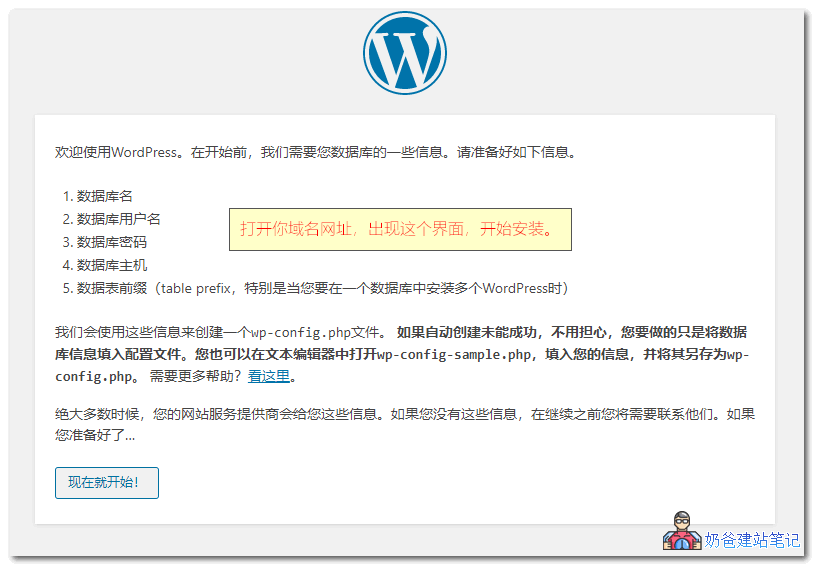
Access the domain to enter the installation wizard

Visit your domain in a browser, and WordPress will prompt you to fill in database information and basic site information.

  • Fill in database connection information
  • Set the site title
  • Set the admin account and a strong password
Step 7

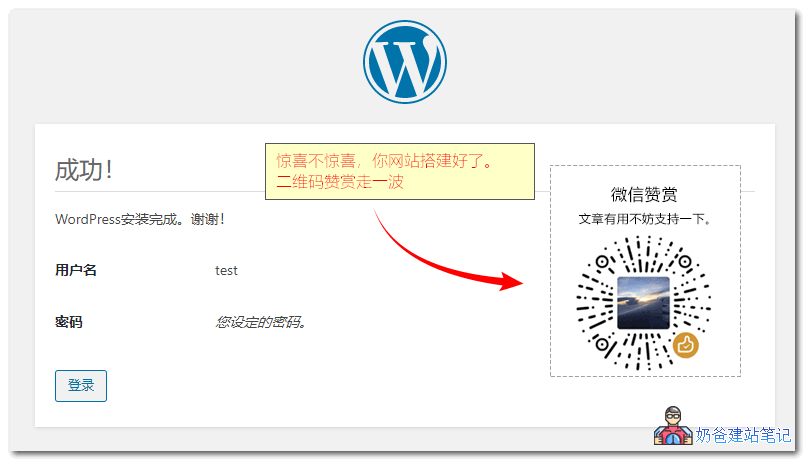
Complete backend initialization

After successful installation, enter the backend, first handle permalinks, language, timezone, SSL, default posts and pages, and basic security settings.

  • Set Permalinks
  • Delete default content
  • Confirm HTTPS is working

Common WordPress installation errors

Installation errors usually involve database, file permissions, PHP environment, and access path. First troubleshoot in the following order.

What to do if it prompts database connection failure?

First check if the database name, username, password, and database host are correct. For VPS local databases, usually use localhost; for shared hosting, check the database host provided by the host. Also confirm that the database user has permission to access this database.

What to do if accessing the domain does not enter the WordPress installation interface?

Check if the domain resolution has taken effect, if the website root directory is correct, and if the domain bound to the server site is correct. If WordPress files are left in a subdirectory like wordpress, the access path may not be as expected.

What to do if installing themes or plugins prompts for FTP?

Usually due to incorrect file permissions or owner. Panel users can change the website file owner to the web user in file management, and confirm that the wp-content directory has write permissions.

Can domestic servers be installed without filing first?

You can prepare content via temporary domain, IP, or local testing, but using a domain to access a domestic server usually requires filing. For websites targeting overseas users, consider overseas servers.

What settings to do first after successful installation

Successful WordPress installation is just the beginning. The following settings will affect subsequent SEO, security, and maintenance experience.

  1. Set site title, language, and timezone Go to Settings > General, first correct the basic site information.
  2. Modify permalinks Go to Settings > Permalinks, it is recommended to use a cleaner post name structure.
  3. Delete default content Delete sample posts, sample pages, and default comments to avoid empty content being indexed by search engines.
  4. Confirm HTTPS, admin account, and backup Enable SSL, do not use admin for the admin account, backup before installing themes and plugins.
  5. Install a few necessary plugins First consider SEO, caching, security, and backup, do not install too many functional plugins at the beginning.

Common WordPress installation issues

These issues mainly come from beginners installing WordPress for the first time.

What is the difference between WordPress.com and WordPress.org?

Building your own independent website usually uses the open-source program provided by WordPress.org. WordPress.com is an official hosting service that is worry-free but differs in freedom and business control.

After WordPress installation is complete, what is the backend address?

Usually it is your domain name followed by /wp-admin/. If you cannot log in, first check whether domain resolution, HTTPS, cache, and security plugins are affecting access.

How to install WordPress with Baota Panel?

Baota Panel is suitable for beginners who have already purchased a VPS but do not want to manually write commands. The typical process is to first install the web environment, then add a site, create a database, upload or download the WordPress installation package online, and finally visit the domain name to enter the installation wizard. You can refer toBaota Panel WordPress Installation Tutorial.

Do I need to install a theme before installing WordPress?

First complete the WordPress core installation and basic settings, then choose a theme. Do not frequently install and delete themes before planning the page structure.

Is it suitable for beginners to install directly using VPS?

It is possible, but it is recommended to use a panel to reduce difficulty and make backups. Beginners who do not want to manage the server at all can consider WordPress hosting first.

What to do if the website cannot be opened after installation?

First check in order: domain resolution, whether the server is running, site binding, HTTPS, database connection, and PHP error logs. Do not change too many things at once, otherwise it will be difficult to locate the problem.

Next Reading

Installation Assistance

If you are stuck on server, database, or installation errors, you can consult based on the issue

You can first try to install it yourself following the tutorial. If you encounter problems such as database connection failure, HTTPS, permissions, theme or plugin installation failure, then contact me to determine whether one-time assistance or website building coaching is suitable.

94 comments

  1. WordPress is already installed on the webpage, why can't it be accessed after switching to another computer? Seeking expert advice, thank you

  2. Read your article, found it very good... would like to exchange friendly links with your site

  3. Hello, I created a WooCommerce product category in a page, but Columns and Rows can only be adjusted to 6, meaning a maximum of 36 products. Installing a Portfolio plugin didn't work either, seeking a solution

    1. Create a new page called Products, publish it directly without any operations. Go to WooCommerce settings, under the Products tab, select the page you just created as the Shop page. Save.

AI Website Building Assistant

🤖
Hello! I am the Naibabiji AI Assistant. How can I help you?
Quick Consultation: