
WeForeign Trade Website BuildingWhen building a foreign trade independent website, WooCommerce is typically used to sell products. Since sales are involved, stock information becomes necessary. This article by Naiba introduces how to set product stock in WooCommerce and how to display the stock quantity on the product purchase page.
How to Set Stock
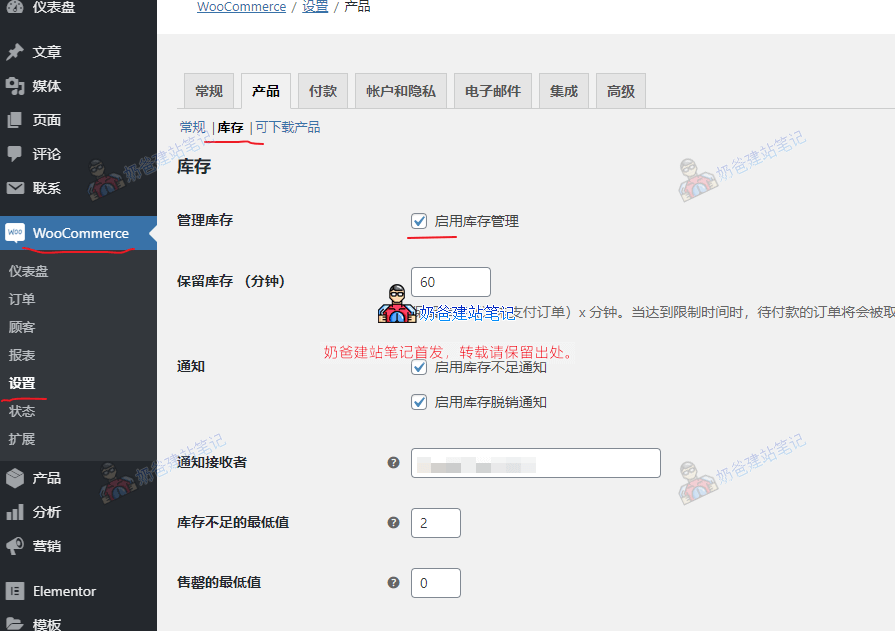
First, go to the website backend, find WooCommerce settings, switch to the product settings page, and then find the inventory settings.
Check Enable stock management, then set the stock holding period, and save the settings.
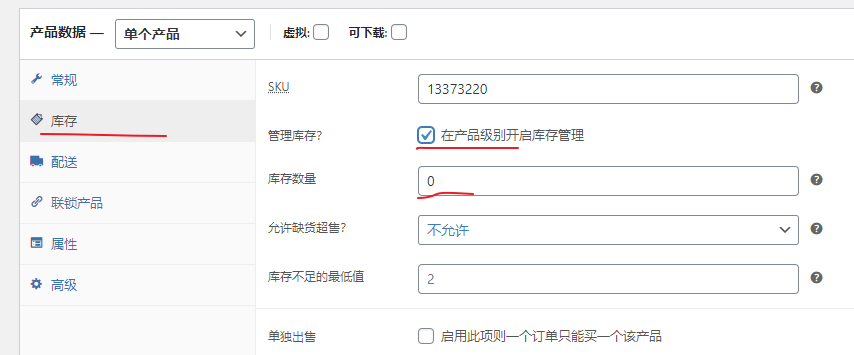
Then, go to the product settings page, find the product's inventory settings tab, and check Manage stock.
Fill in the stock quantity below.
After this operation, WooCommerce inventory is set up. Next, let's see how to display inventory data on the website product page.
Display Stock Information on Product Page
After setting up the stock, you may also want to display the product stock on the Frontend so users can know the remaining quantity. This can be achieved through either a plugin or code.
Method 1: Using the Woocommerce Show Stock Plugin
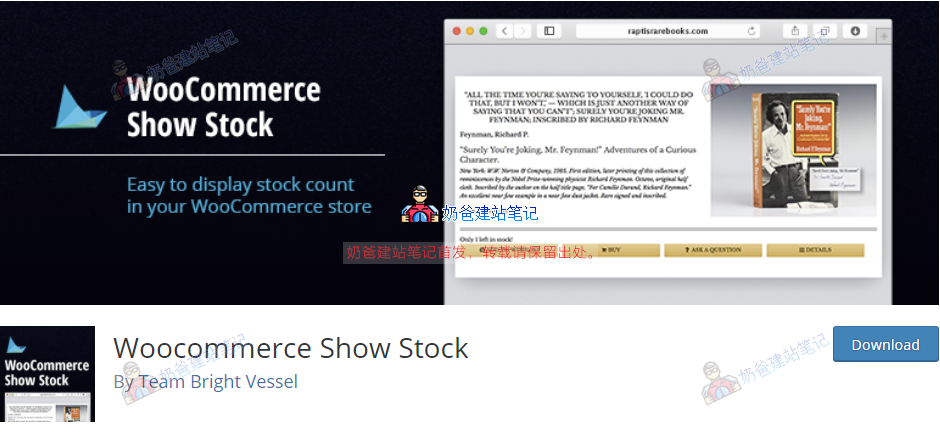
You can search for Woocommerce Show Stock directly from the website backend plugin section and install it.
After installation, go to WooCommerce's inventory settings interface. At the bottom, there is a stock display information setting. After enabling stock display, set the display position and save.
Method 2: Adding via Code
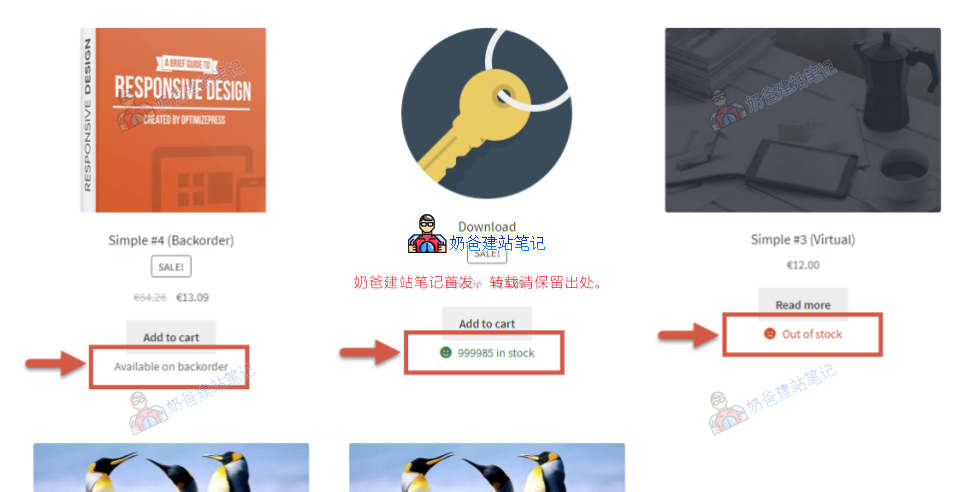
Add the following code snippet to your Theme's functions.php file to display stock information on product archive pages.
add_action( 'woocommerce_after_shop_loop_item', 'bbloomer_show_stock_shop', 10 );

function bbloomer_show_stock_shop() {
global $product;
echo wc_get_stock_html( $product );
}
Source: https://businessbloomer.com/woocommerce-add-stock-quantity-on-shop-page/