
After building your own website and having visitors, how do you track the conversion rate of visitors? For example, what percentage clicked the contact button to get in touch with you? We can use the goal feature of Google Analytics to track all conversions you can think of, such as registration rates, sales, etc. This article will introduce how to set up goals in Google Analytics to track conversions.
What are Google Analytics Goals?
With Google Analytics goals, you can monitor specific user activities on your website. For example, you can create a goal in Google Analytics to measure your sales, views on a target page, contact form submissions, etc.
Each interaction you track on your website can be classified into one of four Google Analytics goal types:
- Destination Goal Example: https://blog.naibabiji.com/about
- Duration Goal Example: Five minutes or longer
- Number of pages/screens viewed per session Example: 3 pages
- Event Example: Play video
Google Analytics also allows you to assign a value to each conversion and even generate reports for specific goals for reference.
There are two methods to track conversion rates in Google Analytics, as follows:
- Automatically track conversions using a plugin
- Manually track conversions by setting up Google Analytics goals
Before using either method, firstEnsure your website has already added the Google Analytics tracking code。
Method 1: Using a Plugin to Automatically Track Conversions
MonsterInsights is a well-known Google Analytics plugin on the WordPress platform, which can display statistical data directly in the WordPress Dashboard without needing to log into the Google Analytics Admin Dashboard to view conversion status.
With MonsterInsights, you can set up Google Analytics conversion tracking with just a few clicks.This is an automated process; you do not need to add any extra code to your website or configure your Google Analytics account.
However, MonsterInsights is not a free plugin; the cheapest version costs $100 per year.
MonsterInsights includes multiple extensions to track specific conversions.
Tracking E-commerce Conversions
If you run an online e-commerce store, then you need to installGoogle Analytics Ecommerce Tracking for WordPress, enable it after installation, and it will automatically track conversion rates, revenue, average order value, and other information.
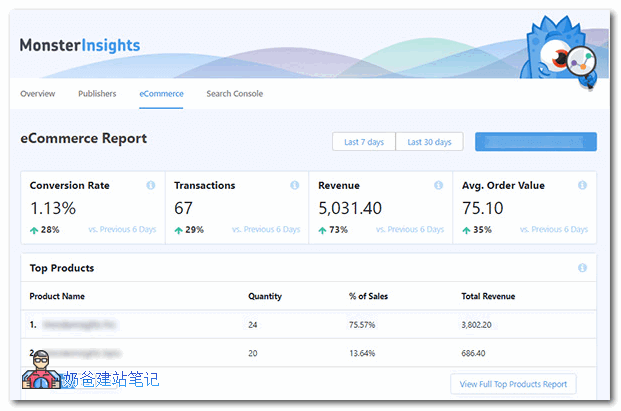
Tracking Contact Form Submissions
If you want to track how many impressions a contact form on your website receives and how many submissions it gets, then you can installWordPress Forms Tracking and Analyticsthis extension.
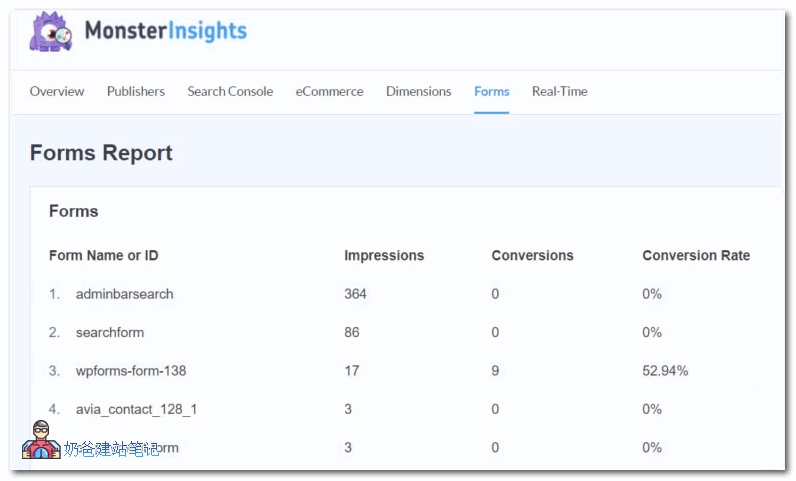
Since plugins can accomplish these goals, it is also possible without a plugin, though it is a bit more troublesome. Below, Naiba will introduce how to manually create goals in Google Analytics.
Method 2: Manually Creating Tracking Goals in Google Analytics
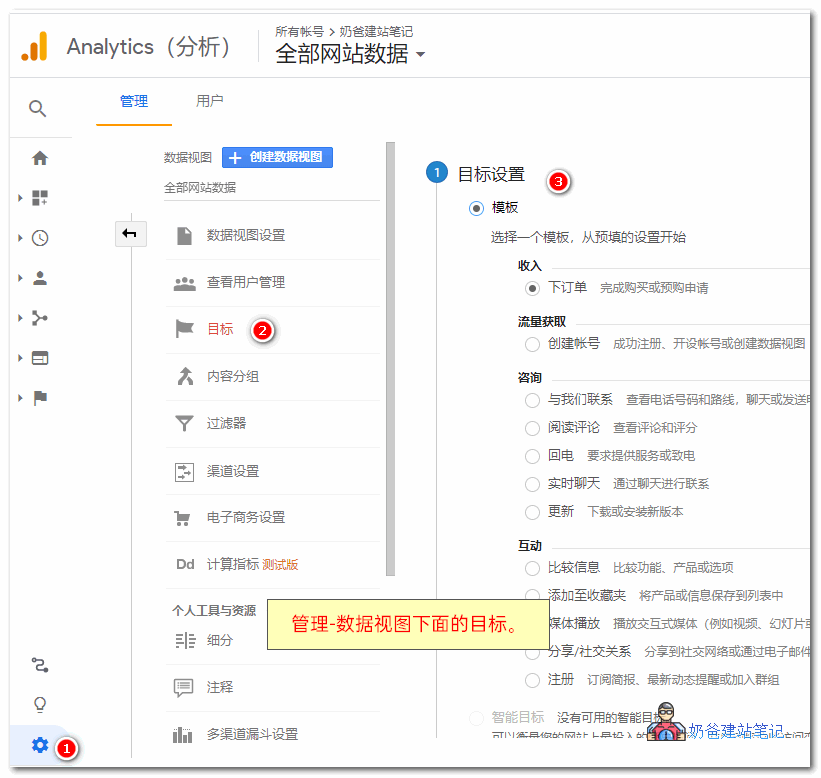
To manually create a conversion goal in Google Analytics, we first need to enter the Google Analytics backend. If you have added statistics for multiple websites, switch to the website for which you want to set the goal.
1. Then clickAdmin–Data View–Goals。
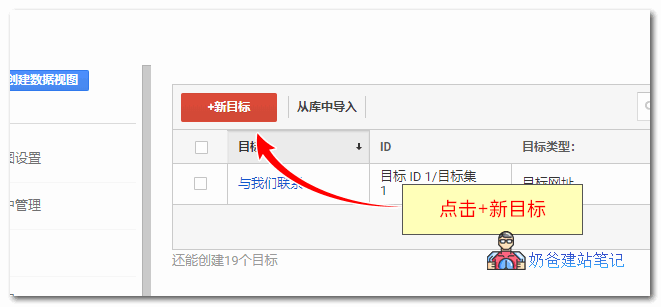
2. Click the New Goal button
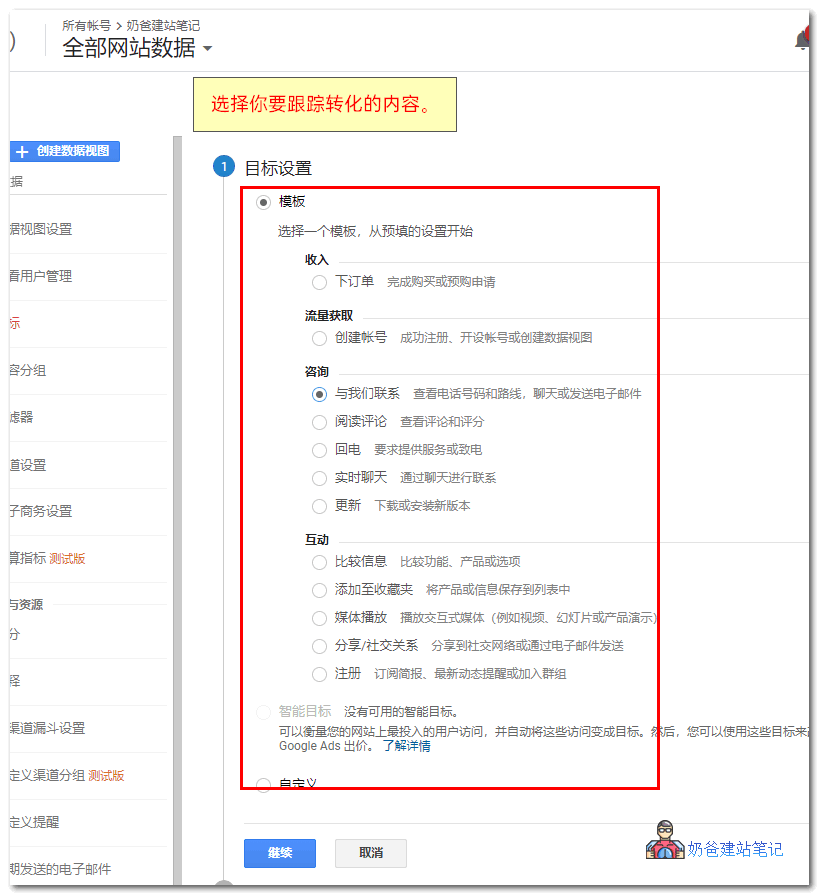
3. Select the content you want to track for conversions. Here, we use consultation, 'Contact Us' as an example.
4. Next, select Event, and the following setup interface will appear.
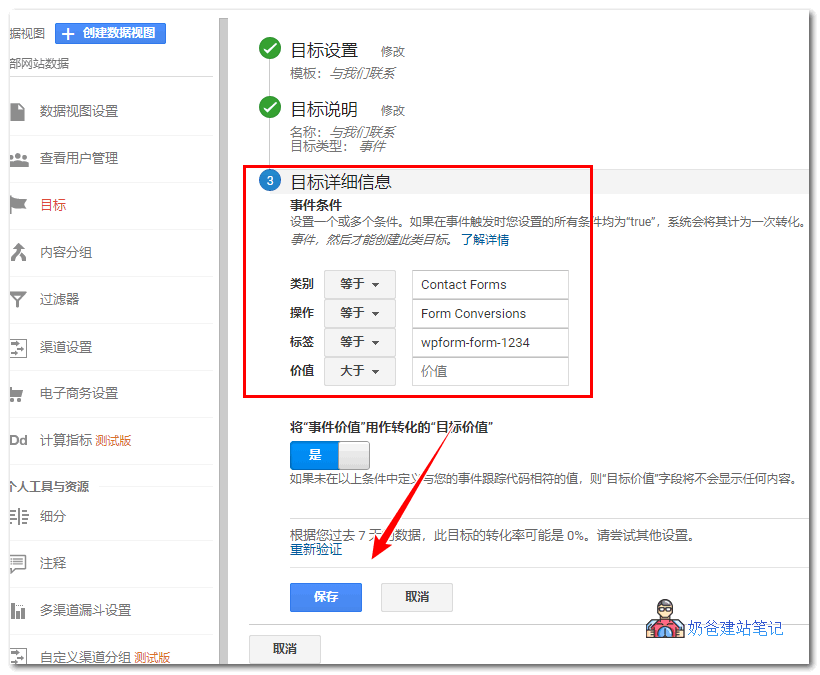
Enter the ID value of the contact form in the tag.
Click the save button to create this tracking goal, and then you can see the tracked conversion information in Google Analytics results.
Reference: https://support.google.com/analytics/answer/1033068?hl=en&utm_id=ad