
When using the foreign trade hosting service SiteGround, WordPress versions are automatically updated by default. Sometimes, you may have modified content in an older version, and it disappears after the automatic update. So, how do you restore the previous version's data?
The method is as follows:
SiteGround's management interface uses the practical cPanel panel. First, log in to the cPanel panel and find the icon button shown in the image below to click.
 If you are using WordPress, click WP AUTO UPDATE.
If you are using Joomla, click Joomla Auto Update.
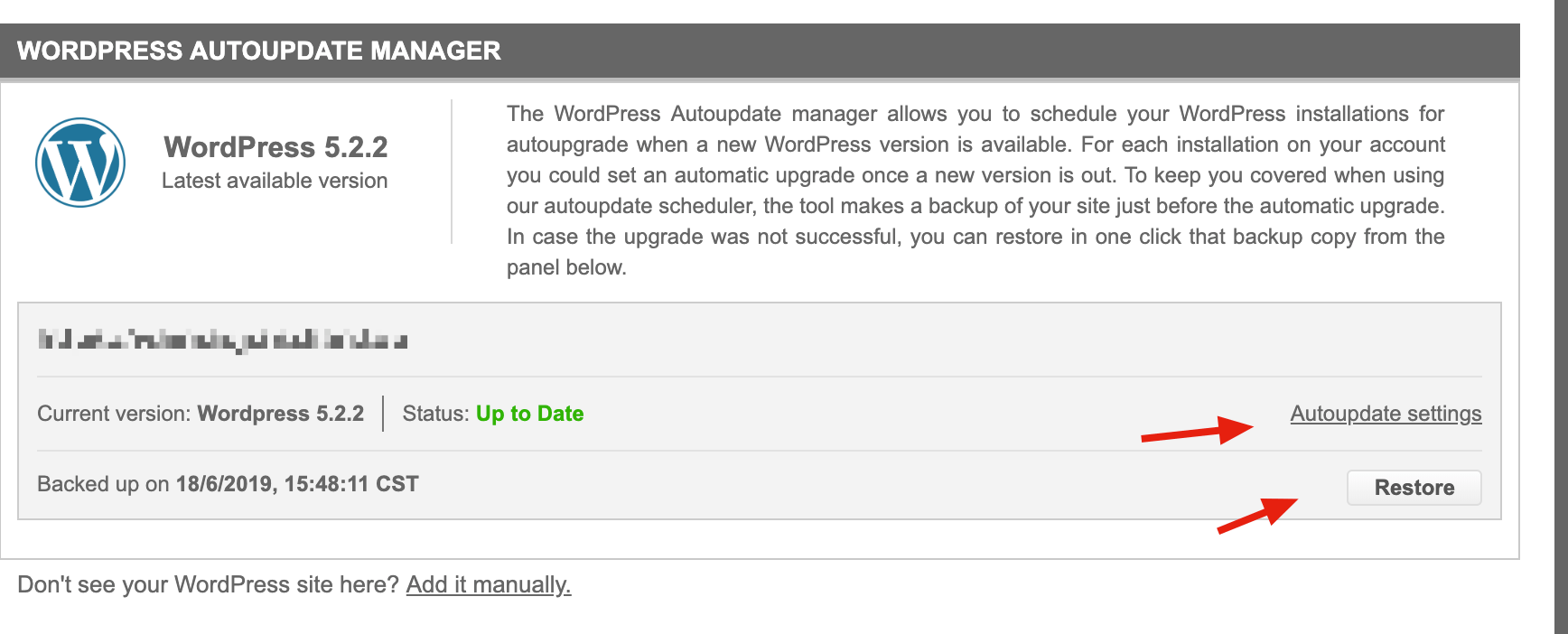 To restore, click Restore to revert to the last backup.
If you don't want automatic updates, click Autoupdate settings to configure.
For more articles about SiteGround, please click:SiteGround Article Category
You might also be interested in
SiteGround Registration Tutorial for Foreign Trade WordPress Website Managed Hosting