Marketing and showcase pages
Homepage, product introduction, service introduction, case studies, and event landing pages are usually better designed with Elementor.
Elementor Tutorial / WordPress Page Design
This is an Elementor beginner's guide for WordPress newcomers: first determine if you really need a page builder, then complete installation, page editing, responsive adjustments, plugin enhancements, and Pro feature selection, avoiding being misled by templates, extensions, and cracked versions from the start.
Page Operations
Due to browser security restrictions, the webpage cannot directly add bookmarks for you. You can manually bookmark the current page using the following methods:
Open WeChat, scan the QR code to view the current page.
Elementor can lower the barrier to page design, but it is not a necessity for all WordPress sites. Beginners should first understand the site structure, theme, and content, then decide which pages need to be designed separately with Elementor.
Elementor is a common visual page builder on the WordPress platform. It allows you to create pages by dragging and dropping widgets, adjusting styles, and responsive settings. When building aForeign Trade Independent Websiteyou can use it to design the homepage, product pages, service pages, and inquiry landing pages, but for article content and long-term content, still consider maintenance efficiency andGoogle SEO。
| Usage Method | Suitable Scenarios | Notes |
|---|---|---|
| Without Elementor, only using theme and block editor | Sites mainly with blogs, tutorials, and content pages | Lighter in speed and maintenance, but complex visual pages require more theme capabilities. |
| Free Elementor | Homepage, About Us, Services, simple landing pages | Suitable for beginners; do not install too many extensions for a small feature. |
| Elementor Pro | Websites that need forms, theme builder, popups, WooCommerce templates, and dynamic content | It is recommended to purchase only when officially needed, to avoid adding complexity prematurely just to „look professional.“ |
| Elementor One | Users who want to combine Editor Pro, AI, image optimization, accessibility, email delivery, site management, etc., in one subscription | More like an all-in-one subscription package from Elementor; if you only need a page builder, first compare whether Pro is sufficient. |
| Elementor + Extension Plugins | Websites that need more widgets, template libraries, and special display modules | Control the number; the more extensions, the higher the compatibility, performance, and maintenance costs. |
| Version | What's Included | How to Choose |
|---|---|---|
| Elementor Free | Basic editor, common widgets, container layout, and basic style settings. | Beginners making a few showcase pages, about page, service page can start with the free version. |
| Elementor Pro | Paid version of the official page builder, includes more Pro widgets, theme builder, dynamic content, forms, popups, and WooCommerce-related capabilities. | Consider when you need to customize headers/footers, post templates, inquiry forms, popups, or store templates. |
| Elementor One | Includes Editor Pro, and integrates AI, image optimization, accessibility, email delivery, cookie consent, site management, etc., into one subscription and credit system. | Suitable for users who want to reduce multiple tool subscriptions and prefer to create, optimize, and manage within the Elementor ecosystem. |
Homepage, product introduction, service introduction, case studies, and event landing pages are usually better designed with Elementor.
For large amounts of article content, continue using the WordPress editor for easier maintenance; it is not recommended to rebuild every article with Elementor.
The more animations, widgets, and templates, the harder it is to control speed and maintenance. Beginners should first ensure clear structure and readable content.
Installing Elementor itself is not difficult; the real issues often come from theme selection, page templates, plugin sources, and basic settings.
Elementor is a WordPress plugin, not a standalone website builder. Before starting, complete domain, hosting, andWordPress installationand basic settings. If you haven't chosen an environment yet, you can first checkWordPress Hosting Recommendations。
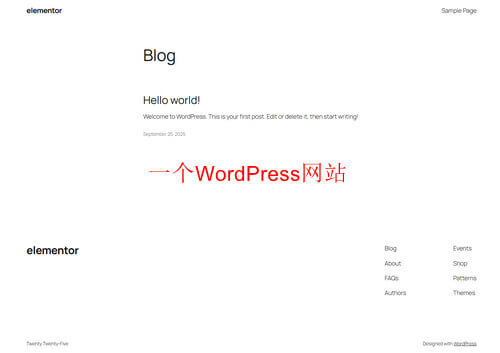
Go to „Plugins > Add New“, search for Elementor, confirm the author is Elementor.com, then install and activate.
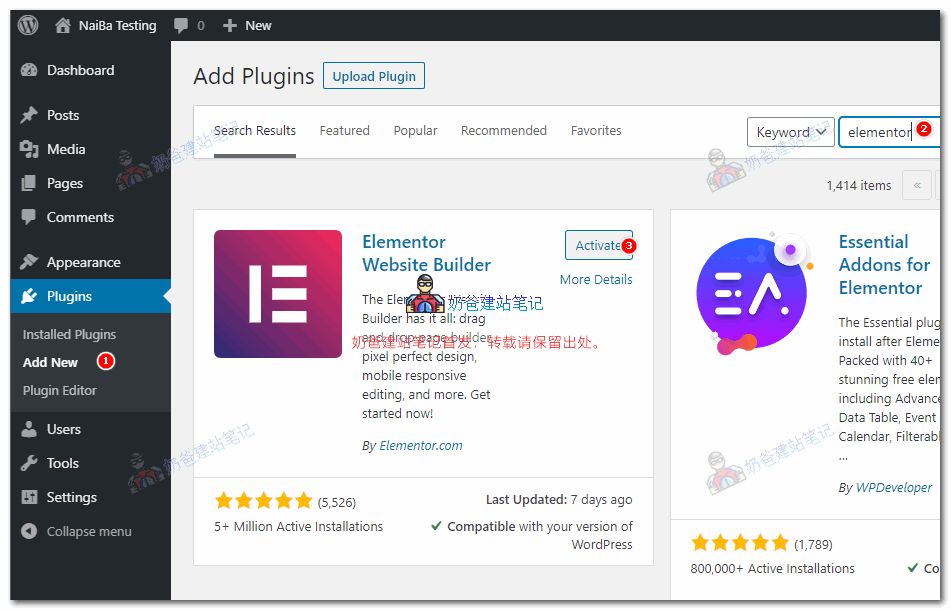
Beginners don't necessarily have to use the completely blank Hello theme. Lightweight themes like Astra and GeneratePress are more suitable for learning from templates and theme settings.
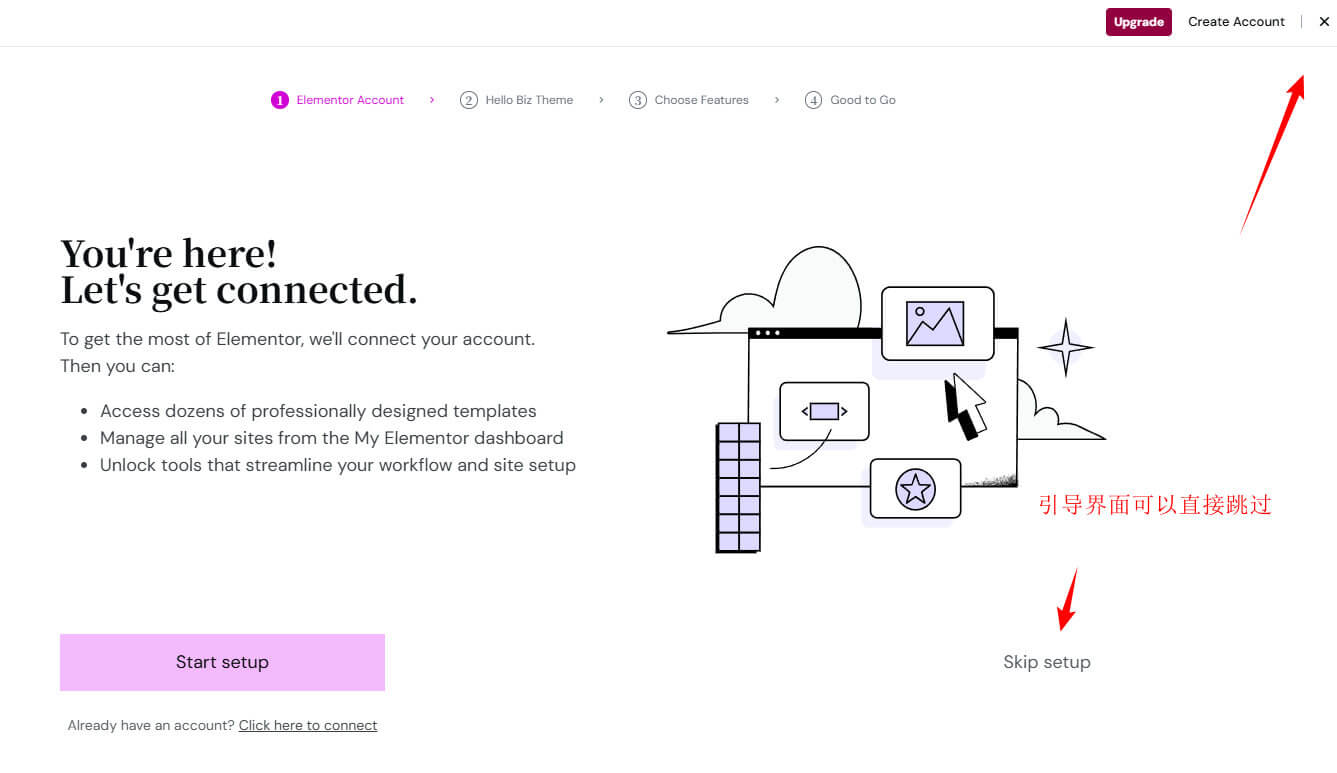
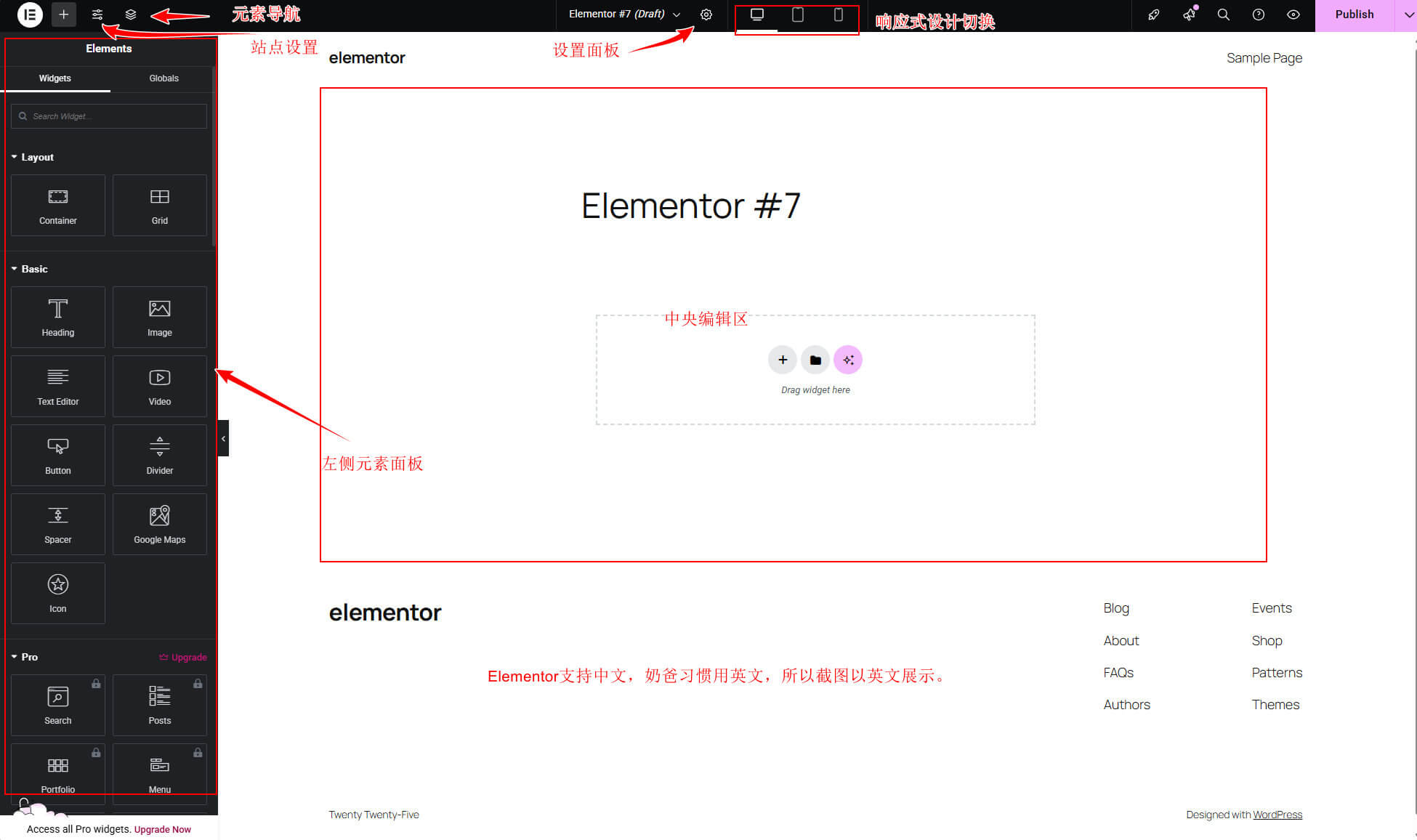
After creating a new page, click „Edit with Elementor“. First, familiarize yourself with the left widget panel, central preview area, style panel, and responsive preview.
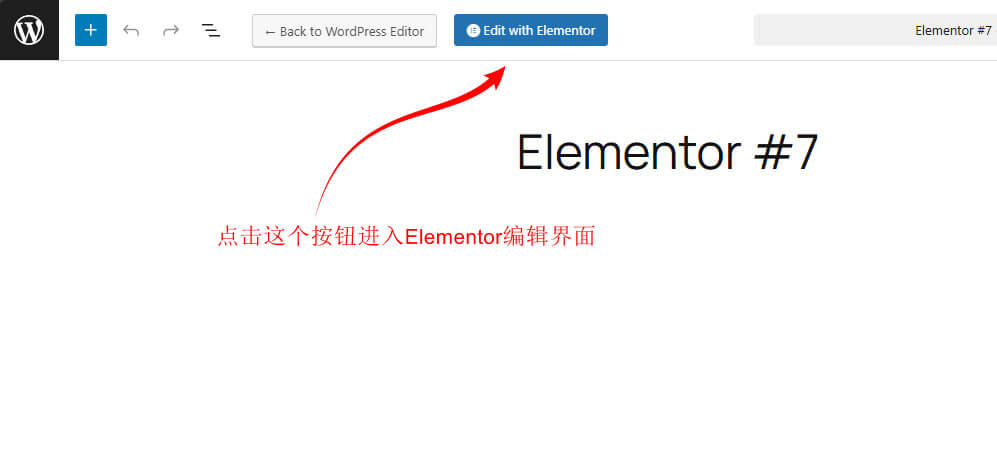
When opening Elementor for the first time, don't rush to apply templates. First, understand the four areas of the editor and basic operations; layout will be much easier later.
Add elements like headings, images, buttons, containers, icon lists, etc. When an element is selected, this area switches to content, style, and advanced settings.
The page content will be displayed in real time in the center. Don't just look at the desktop preview; be sure to switch to the mobile view to check key pages before publishing.
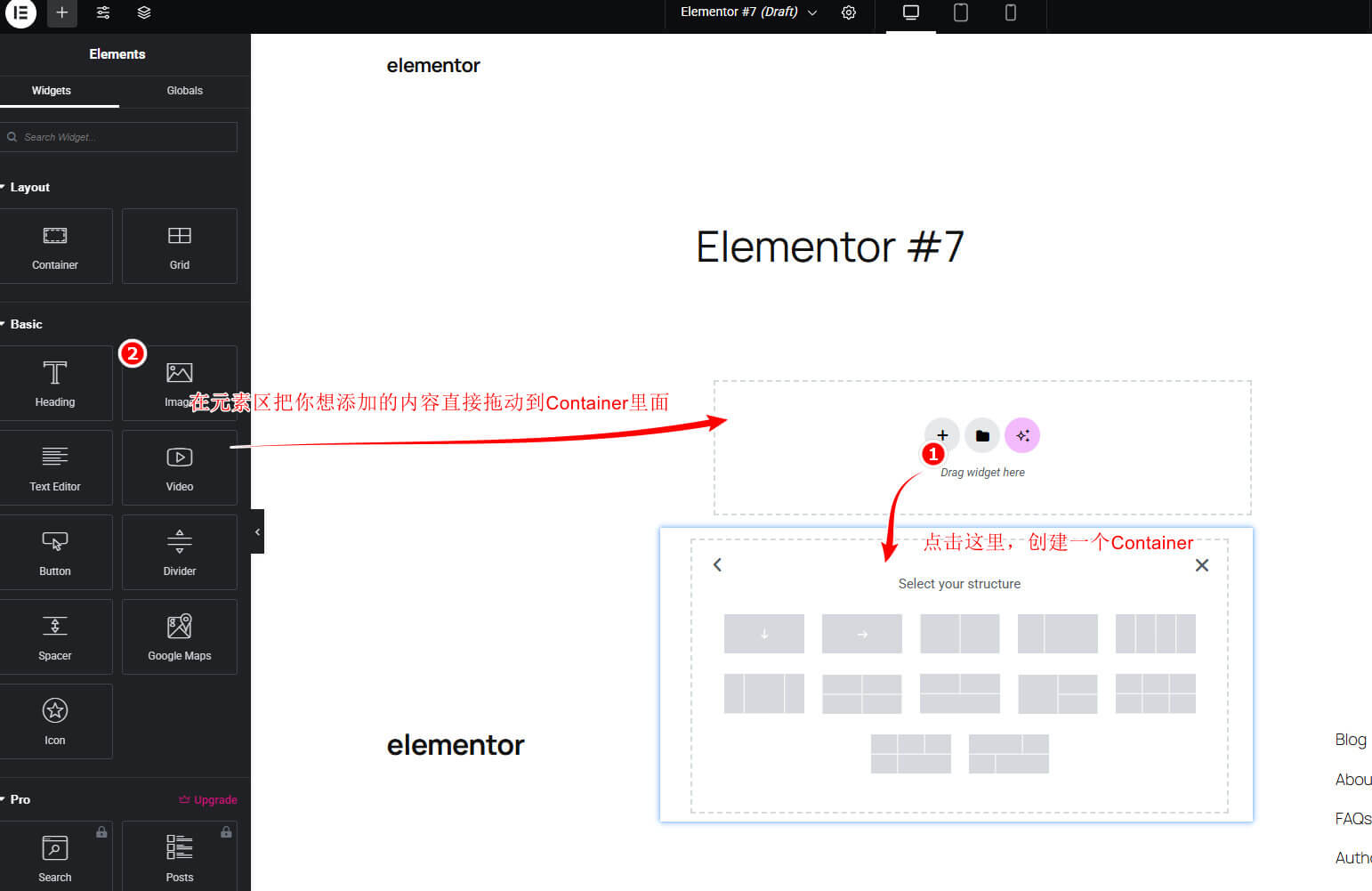
The new version of Elementor recommends using containers to organize pages instead of the old Section/Column approach. Containers are better suited for responsive and modern layouts.
Set global colors, fonts, and button styles first, then make local adjustments, avoiding manual changes to each module.
| Editing Method | Main Differences | Recommendation for Beginners |
|---|---|---|
| Old Section/Column Approach | Build pages using sections, columns, and widgets; many old tutorials and templates are still based on this structure. | You may still encounter this when maintaining old websites or following old tutorials; no need to rush to redo them. |
| Container Layout | Use Flexbox containers to organize page structure, better suited for responsive design, nested control, and modern page layouts. | Prioritize containers for new pages; it is not recommended to continue using the old section/column structure for new designs. |
| Elementor 4.0 Atomic Editor | The new editing foundation being promoted by the official team, emphasizing finer-grained elements, class/variable-style style reuse, less nesting, and a more consistent design system. | Officially recommended new editor with better performance, but still in the stabilization phase; it has a steeper learning curve than Container for beginners, but those with strong self-learning ability can choose it. |
Page design does not start with „dragging a nice module“ but with deciding the page goal and information order. The following workflow is more suitable for beginners to follow.
Determine the H1, above-the-fold explanation, core modules, FAQ, and call-to-action buttons. Do not apply a template without having the copy ready.
Use containers to separate the hero section, content area, comparison section, case studies section, and contact section, ensuring readability on both desktop and mobile.
Set global colors, fonts, buttons, and spacing to make the page look like part of the same website, rather than a patchwork of templates.
Check mobile view, image size, font loading, number of animations, and number of extensions before publishing.
Extensions can add widgets and templates, but more is not always better. For official websites, prioritize controlling the number and only keep features you actually use.
| Extension | Common Use | Is it needed for beginners? | Recommendation |
|---|---|---|---|
| Essential Addons for Elementor | Common display modules such as price table, data table, team members, countdown, etc. | Optional | Feature-rich; first confirm if you really need it to avoid duplicate widgets. |
| Premium Addons for Elementor | Carousel, charts, maps, galleries, and visual display modules | Optional | Suitable for display pages; be careful not to overuse animations and carousels. |
| ElementsKit | Comprehensive features including widgets, templates, header & footer, Mega Menu, form styling, and WooCommerce | Optional | Large feature coverage; easily overlaps with theme, Elementor Pro, or other extensions; beginners should only enable modules they truly need. |
| Happy Addons | Visual modules like cards, icon lists, comparisons, timelines, etc. | Optional | Suitable for supplementing a few display effects; enable as needed. |
Purchase tips:If you need the Pro version of the above plugins, you cancontact Naibapurchase at a price lower than the official one.
Whether to buy Pro depends on whether you really need its core features, not on how good the template promotional images look.
| Pro Features | Who It's For | Alternative or notes |
|---|---|---|
| Theme Builder | Websites that want to customize headers, footers, post templates, and archive templates | When a classic theme already has fixed templates, you may not need to use Elementor to take over the entire site. |
| Form Builder | Websites that require forms for inquiries, subscriptions, quotes, file uploads, etc. | You can also use independent form plugins like Fluent Forms, WPForms, Contact Form 7, etc. |
| Popup Builder | Websites that require popups for subscriptions, promotions, exit intent, or announcements | Popups can easily disturb users; use them cautiously on content and tutorial sites. |
| WooCommerce Builder | Online stores that need deep customization of product pages, shop pages, and checkout experience | Simple display sites or B2B inquiry sites may not need e-commerce template capabilities. |
Cracked plugins may bring backdoors, inability to update, compatibility failures, and lack of after-sales support. For formal business websites, it is recommended to use official genuine versions, or first use the free version and lightweight themes to complete basic pages.
These questions mainly come from beginners using Elementor for page building for the first time.
If you only need simple pages, company introductions, service descriptions, or basic landing pages, the free version is usually sufficient. Consider Pro or other plugins when you need the Theme Builder, forms, popups, dynamic content, or deep WooCommerce templates.
It is not recommended. Cracked plugins often come from unknown sources, may have backdoors, cannot be updated, and are incompatible with new versions of WordPress/Elementor. Once a formal website has issues, the cost of troubleshooting and migration is high. If your budget is limited, you can first use the free version to complete basic pages, and purchase the genuine version when your business needs the Theme Builder, forms, or popups.
Elementor Pro is a subscription paid per number of sites. The specific price is subject to the purchase page. If you only need a few display pages, the free version is usually sufficient; consider Pro when you need the Theme Builder, forms, popups, WooCommerce templates, or dynamic content. This site recommends purchasing throughQuhe Elementor Proto get a cheaper purchase channel.
Page builders are generally heavier than pure theme templates, but whether it significantly slows down depends on page complexity, images, fonts, extension plugins, caching, and host performance. Beginners should not pile up too many animations, carousels, and extension plugins. For beginners, being able to design the page first is more important than pursuing extreme page loading speed from the start.
For articles, tutorials, and long-term content, it is recommended to prioritize the WordPress editor for easier maintenance. For homepages, service pages, product display pages, and marketing landing pages, you can use Elementor for more complex visual layouts.
The Hello theme is very lightweight, but it is close to a blank theme, requiring you to handle more full-site design yourself. Naiba has not seen any beginner design a website professionally enough using the Hello theme, so it is strongly recommended that beginners do not start with Hello. You can first use lightweight themes like Astra, Blocksy, GeneratePress, and decide whether to use a blank theme after becoming familiar.
First switch to responsive preview, check container direction, width, spacing, font size, and visibility settings one by one. Do not just adjust on desktop and publish.
Elementor Pro's Theme Builder can modify the header and footer. The free version usually requires the theme's built-in settings or an additional header and footer plugin. For sites already stabilized by the theme, it may not be necessary to hand over the header and footer to Elementor.
It is recommended to first complete the basic pages by following the tutorial. If you encounter layout confusion, abnormal responsive display, slow page speed, or are unsure whether to buy Pro, then contact me to determine if one-time assistance or Website Building Coaching is suitable.
Naiba, hello. After creating the front-end page with Elementor, how can I retrieve database data? For example, how to implement dynamic data for a news list and detail pages?
Pro seems to support dynamic data calls.
If I purchase the genuine version now and do not renew after expiration, will the Pro elements and templates used during website building become unavailable?
Without renewal, you cannot edit or upgrade, but existing content remains functional.
Hello, what's the difference between the cracked version on the website and the genuine version where one Elementor account can support multiple websites?
The cracked version can be uploaded and used on any website, but it only provides Pro features and cannot access online templates and assets. The genuine version requires one license per website, allowing access to both features and the online template library. The template library offers ready-made templates that you can directly import and use on your website.
Is there any introduction about GenerateBlocks and GeneratePress?
No, after all, they all require purchasing. Currently, the free version of Elementor is sufficient for many websites. The effects of GenerateBlocks can basically be achieved with Elementor as well.
Hello, I„d like to ask about the “shortcode„ issue:
I downloaded and installed the YITH plugin in the WordPress admin panel, and used Elementor to edit and insert the shortcode: [yith_ywraq_button_quote]
However, the page did not generate a button; it only displayed the shortcode I entered: [yith_ywraq_button_quote]
How can I troubleshoot and fix this issue? Thank you!
Did you add it using the code module in Elementor?