
Naiba previously shared „Using Cart2Cart to Transfer Shopify to WooCommerce Website Tutorial", but if your Shopify is banned and inaccessible, how can you quickly migrate to WordPress?
Naiba shares here amethod to minimize website loss when transferring from a banned Shopify to WordPress。

The hottest projects for foreign trade websites this year are medical masks, protective clothing, and other COVID-19 related content. However, Amazon and Shopify have introduced some rules regarding this pandemic. If you accidentally cross the line, your account will be directly banned, and your website will become inaccessible.
So, next, try to migrate website data using WordPress, where you have full control over all data.
Step 1: Purchase a server and install WordPress
Shopify gives you a website for money, while WordPress requires us to purchase a server and install the website ourselves.
Considering that many beginners are just switching from Shopify to WordPress and need to restore the website as soon as possible, it is recommended to directly purchase SiteGround's server.
Step 2: Choose a suitable Theme template
Like Shopify templates, choose a good WordPress template.
We directly go tohttps://1.envato.market/We2DOpurchase a Theme template suitable for your business and install it.
Step 3: Restore website content
Since Shopify is banned and cannot be accessed directly, we can use Google's cache feature.
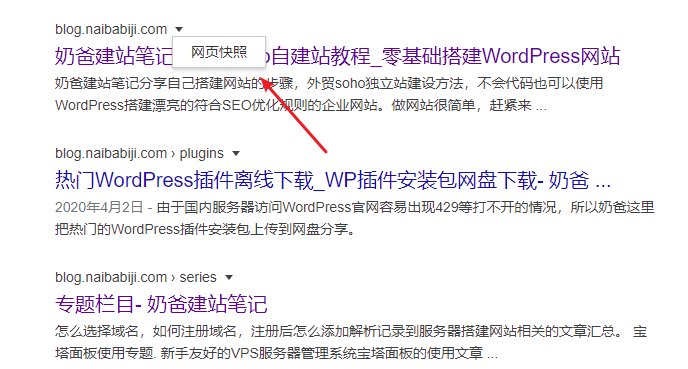
Search on Google using the site command, for example site:blog.naibabiji.com
Then click on the cached page, and copy all the content you can find to the WordPress website pages.
Content not included in some caches can be manually added later.
Step 4: Set up 301 redirects
Because the URL structure of Shopify is different from WordPress, we need to manually set up 301 redirects from the original URLs of these cached pages to the pages built with WordPress.
After completing these 4 steps, we have maximized the mitigation of the impact of website inaccessibility after Shopify is banned.