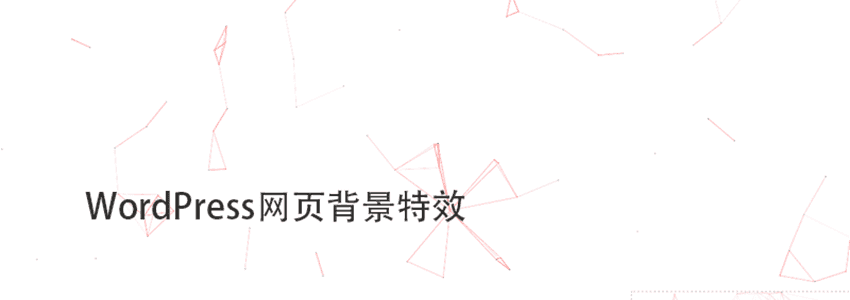
ブログ界隈をよく訪れるなら、多くのブログの背景に多数の線があり、マウスポインターに追従して吸着するのを見たことがあるでしょう。このエフェクトはどうやって実現するのでしょうか?簡単です。1つのjsファイルを呼び出すだけです。このjsファイルは非常に小さいため、パフォーマンスに影響を与える心配はありません。
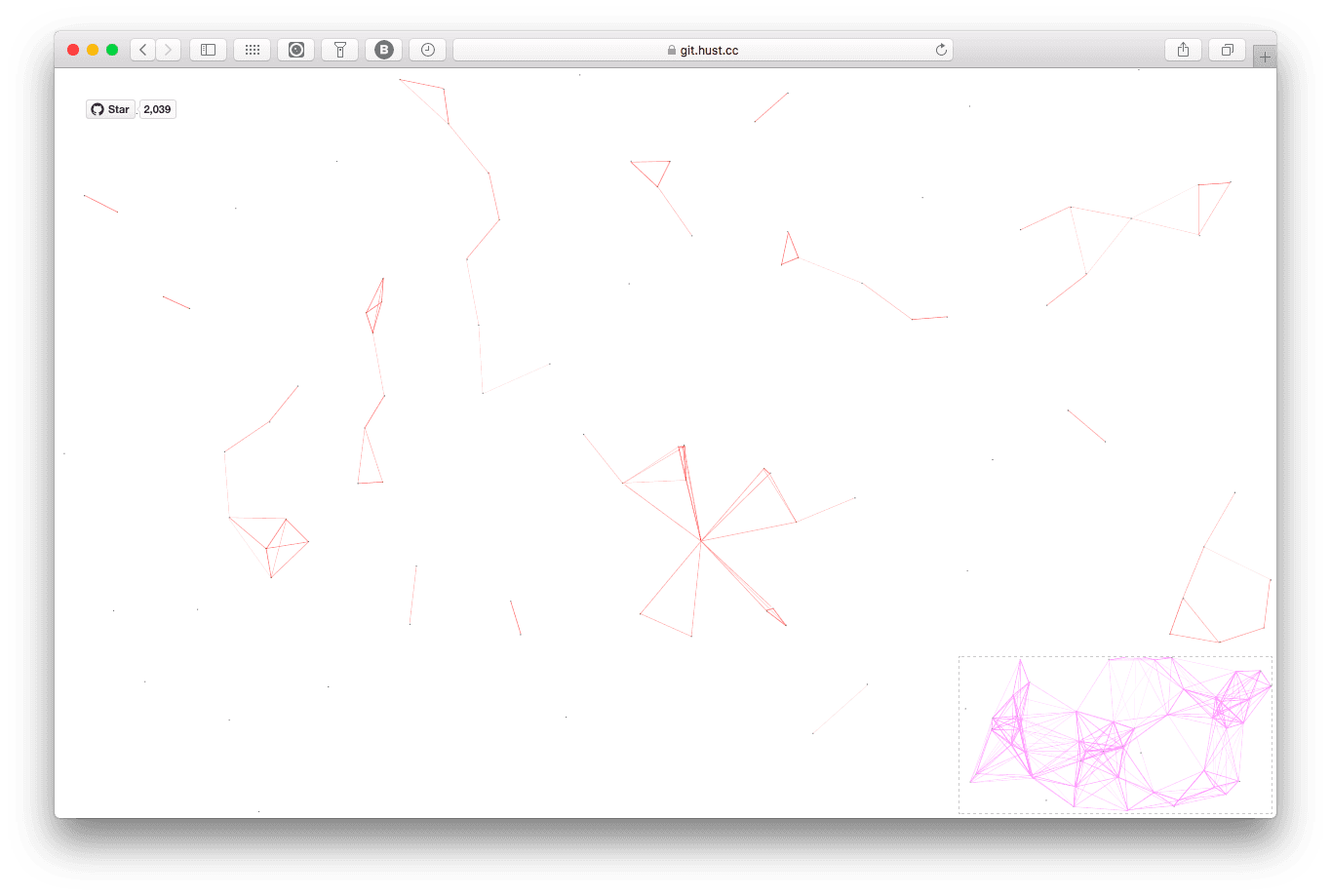
効果は以下の通りです:
 コード版の使用方法
以下のコードをコピーしてjsファイルとして保存してください。また、直接Githubからダウンロード
注:このコードはすべてのウェブサイトで使用可能で、WordPressに限定されません。
!function(){"use strict";function e(e){return e&&e.__esModule&&Object.prototype.hasOwnProperty.call(e,"default")?e.default:e}function t(e,t){return e(t={exports:{}},t.exports),t.exports}var n=t(function(e,t){Object.defineProperty(t,"__esModule",{value:!0});var n=1;t.default=function(){return""+n++},e.exports=t.default});e(n);var o=t(function(e,t){Object.defineProperty(t,"__esModule",{value:!0}),t.default=function(e){var t=arguments.length>1&&void 0!==arguments[1]?arguments[1]:30,n=null;return function(){for(var o=this,i=arguments.length,r=Array(i),a=0;a<i;a++)r[a]=arguments[a];clearTimeout(n),n=setTimeout(function(){e.apply(o,r)},t)}},e.exports=t.default});e(o);var i=t(function(e,t){Object.defineProperty(t,"__esModule",{value:!0});t.SizeSensorId="size-sensor-id",t.SensorStyle="display:block;position:absolute;top:0;left:0;height:100%;width:100%;overflow:hidden;pointer-events:none;z-index:-1;opacity:0",t.SensorClassName="size-sensor-object"});e(i);i.SizeSensorId,i.SensorStyle,i.SensorClassName;var r=t(function(e,t){Object.defineProperty(t,"__esModule",{value:!0}),t.createSensor=void 0;var n,r=(n=o)&&n.__esModule?n:{default:n};t.createSensor=function(e){var t=void 0,n=[],o=(0,r.default)(function(){n.forEach(function(t){t(e)})}),a=function(){t&&t.parentNode&&(t.contentDocument.defaultView.removeEventListener("resize",o),t.parentNode.removeChild(t),t=void 0,n=[])};return{element:e,bind:function(r){t||(t=function(){"static"===getComputedStyle(e).position&&(e.style.position="relative");var t=document.createElement("object");return t.onload=function(){t.contentDocument.defaultView.addEventListener("resize",o),o()},t.setAttribute("style",i.SensorStyle),t.setAttribute("class",i.SensorClassName),t.type="text/html",e.appendChild(t),t.data="about:blank",t}()),-1===n.indexOf(r)&&n.push(r)},destroy:a,unbind:function(e){var o=n.indexOf(e);-1!==o&&n.splice(o,1),0===n.length&&t&&a()}}}});e(r);r.createSensor;var a=t(function(e,t){Object.defineProperty(t,"__esModule",{value:!0}),t.createSensor=void 0;var n,i=(n=o)&&n.__esModule?n:{default:n};t.createSensor=function(e){var t=void 0,n=[],o=(0,i.default)(function(){n.forEach(function(t){t(e)})}),r=function(){t.disconnect(),n=[],t=void 0};return{element:e,bind:function(i){t||(t=function(){var t=new ResizeObserver(o);return t.observe(e),o(),t}()),-1===n.indexOf(i)&&n.push(i)},destroy:r,unbind:function(e){var o=n.indexOf(e);-1!==o&&n.splice(o,1),0===n.length&&t&&r()}}}});e(a);a.createSensor;var s=t(function(e,t){Object.defineProperty(t,"__esModule",{value:!0}),t.createSensor=void 0;t.createSensor="undefined"!=typeof ResizeObserver?a.createSensor:r.createSensor});e(s);s.createSensor;var u=t(function(e,t){Object.defineProperty(t,"__esModule",{value:!0}),t.removeSensor=t.getSensor=void 0;var o,r=(o=n)&&o.__esModule?o:{default:o};var a={};t.getSensor=function(e){var t=e.getAttribute(i.SizeSensorId);if(t&&a[t])return a[t];var n=(0,r.default)();e.setAttribute(i.SizeSensorId,n);var o=(0,s.createSensor)(e);return a[n]=o,o},t.removeSensor=function(e){var t=e.element.getAttribute(i.SizeSensorId);e.element.removeAttribute(i.SizeSensorId),e.destroy(),t&&a[t]&&delete a[t]}});e(u);u.removeSensor,u.getSensor;var c=t(function(e,t){Object.defineProperty(t,"__esModule",{value:!0}),t.clear=t.bind=void 0;t.bind=function(e,t){var n=(0,u.getSensor)(e);return n.bind(t),function(){n.unbind(t)}},t.clear=function(e){var t=(0,u.getSensor)(e);(0,u.removeSensor)(t)}});e(c);var l=c.clear,d=c.bind,v=window.requestAnimationFrame||window.webkitRequestAnimationFrame||window.mozRequestAnimationFrame||window.msRequestAnimationFrame||window.oRequestAnimationFrame||function(e){return window.setTimeout(e,1e3/60)},f=window.cancelAnimationFrame||window.webkitCancelAnimationFrame||window.mozCancelAnimationFrame||window.msCancelAnimationFrame||window.oCancelAnimationFrame||window.clearTimeout,m=function(e){return new Array(e).fill(0).map(function(e,t){return t})},h=Object.assign||function(e){for(var t=1;t<arguments.length;t++){var n=arguments[t];for(var o in n)Object.prototype.hasOwnProperty.call(n,o)&&(e[o]=n[o])}return e},p=function(){function e(e,t){for(var n=0;n<t.length;n++){var o=t[n];o.enumerable=o.enumerable||!1,o.configurable=!0,"value"in o&&(o.writable=!0),Object.defineProperty(e,o.key,o)}}return function(t,n,o){return n&&e(t.prototype,n),o&&e(t,o),t}}();var y=function(){function e(t,n){var o=this;!function(e,t){if(!(e instanceof t))throw new TypeError("Cannot call a class as a function")}(this,e),this.randomPoints=function(){return m(o.c.count).map(function(){return{x:Math.random()*o.canvas.width,y:Math.random()*o.canvas.height,xa:2*Math.random()-1,ya:2*Math.random()-1,max:6e3}})},this.el=t,this.c=h({zIndex:-1,opacity:.5,color:"0,0,0",pointColor:"0,0,0",count:99},n),this.canvas=this.newCanvas(),this.context=this.canvas.getContext("2d"),this.points=this.randomPoints(),this.current={x:null,y:null,max:2e4},this.all=this.points.concat([this.current]),this.bindEvent(),this.requestFrame(this.drawCanvas)}return p(e,[{key:"bindEvent",value:function(){var e=this;d(this.el,function(){e.canvas.width=e.el.clientWidth,e.canvas.height=e.el.clientHeight}),this.onmousemove=window.onmousemove,window.onmousemove=function(t){e.current.x=t.clientX-e.el.offsetLeft+document.scrollingElement.scrollLeft,e.current.y=t.clientY-e.el.offsetTop+document.scrollingElement.scrollTop,e.onmousemove&&e.onmousemove(t)},this.onmouseout=window.onmouseout,window.onmouseout=function(){e.current.x=null,e.current.y=null,e.onmouseout&&e.onmouseout()}}},{key:"newCanvas",value:function(){"static"===getComputedStyle(this.el).position&&(this.el.style.position="relative");var e,t=document.createElement("canvas");return t.style.cssText="display:block;position:absolute;top:0;left:0;height:100%;width:100%;overflow:hidden;pointer-events:none;z-index:"+(e=this.c).zIndex+";opacity:"+e.opacity,t.width=this.el.clientWidth,t.height=this.el.clientHeight,this.el.appendChild(t),t}},{key:"requestFrame",value:function(e){var t=this;this.tid=v(function(){return e.call(t)})}},{key:"drawCanvas",value:function(){var e=this,t=this.context,n=this.canvas.width,o=this.canvas.height,i=this.current,r=this.points,a=this.all;t.clearRect(0,0,n,o);var s=void 0,u=void 0,c=void 0,l=void 0,d=void 0,v=void 0;r.forEach(function(r,f){for(r.x+=r.xa,r.y+=r.ya,r.xa*=r.x>n||r.x<0?-1:1,r.ya*=r.y>o||r.y<0?-1:1,t.fillStyle="rgba("+e.c.pointColor+")",t.fillRect(r.x-.5,r.y-.5,1,1),u=f+1;u<a.length;u++)null!==(s=a[u]).x&&null!==s.y&&(l=r.x-s.x,d=r.y-s.y,(v=l*l+d*d)<s.max&&(s===i&&v>=s.max/2&&(r.x-=.03*l,r.y-=.03*d),c=(s.max-v)/s.max,t.beginPath(),t.lineWidth=c/2,t.strokeStyle="rgba("+e.c.color+","+(c+.2)+")",t.moveTo(r.x,r.y),t.lineTo(s.x,s.y),t.stroke()))}),this.requestFrame(this.drawCanvas)}},{key:"destroy",value:function(){l(this.el),window.onmousemove=this.onmousemove,window.onmouseout=this.onmouseout,f(this.tid),this.canvas.parentNode.removeChild(this.canvas)}}]),e}();y.version="2.0.4";var w,b;new y(document.body,(w=document.getElementsByTagName("script"),{zIndex:(b=w[w.length-1]).getAttribute("zIndex"),opacity:b.getAttribute("opacity"),color:b.getAttribute("color"),pointColor:b.getAttribute("pointColor"),count:Number(b.getAttribute("count"))||99}))}();保存したファイルがcanvas-nest.jsで、サーバーのdistフォルダーにアップロードしたと仮定します。
次に、WordPressサイトのフッターfooter.phpファイルの</body>の前に以下のコードを追加します。
<script type="text/javascript" src="dist/canvas-nest.js"></script>
表示効果のカスタマイズ
color: 線の色、デフォルト: ‚0,0,0‘;3つの数字はそれぞれ(R,G,B)で、カンマで区切ります
pointColor: 交点の色、デフォルト: ‚0,0,0‘;3つの数字はそれぞれ(R,G,B)で、カンマで区切ります
opacity: 線の透明度(0〜1)、デフォルト: 0.5
count: 線の総数、デフォルト: 150
zIndex: 背景のz-indexプロパティ。CSSプロパティでレイヤーの位置を制御します。デフォルト: -1
例えば以下のように
<script type="text/javascript" color="0,0,255" opacity='0.7' zIndex="-2" count="99" src="dist/canvas-nest.js"></script>
注意: すべての設定項目にはデフォルト値があります。設定方法がわからない場合は、これらの設定項目を設定せずにデフォルト値を使用して効果を確認しても構いません。
コード版が難しいと感じる場合は、プラグイン版を使用することもできます。
WordPress Canvasプラグインのダウンロード
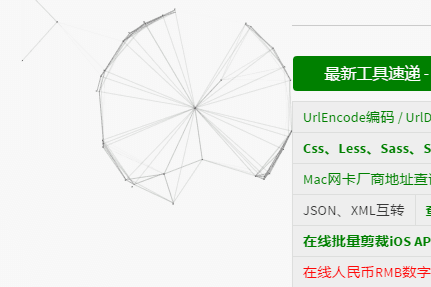
canvas-nest.jsはGitHub上で非常にクールなオープンソースプロジェクトです。このプロジェクトは2KB未満のJavaScriptコードを使用して、非常にクールなウェブページ背景エフェクトを作成します。プロジェクトアドレス:https://github.com/aTool-org/canvas-nest.js
このWordPressプラグインは、上記のプロジェクトを利用して作成された別のオープンソースプロジェクト(https://github.com/aTool-org/canvas-nest-for-wp)です。このプロジェクトはWordPressプラグインであり、WordPress.org公式サイトに公開されています。
プラグインのダウンロードURL:https://wordpress.org/plugins/canvas-nestjs/
コメント欄にタイピング花火エフェクトを追加
ウェブページの背景エフェクトの他に、このブログのコメント欄でタイピング時に花火エフェクトが表示されることにお気づきかもしれません。気づかなかった場合は、コメントで試してみてください。
実装方法は簡単です。以下を参照してください:WordPressコメントインターフェースに花火????エフェクトを追加