To migrate a WordPress website from Baota Panel to WP Panel, you only need to first create backups of the website and database in the Baota Panel backend, download them to your local machine. Then create a website in the WP Panel backend and restore the backup. This article will guide you through the process of restoring website data after reinstalling Baota Panel as WP Panel.
Step 1: Backup in Baota Panel backend

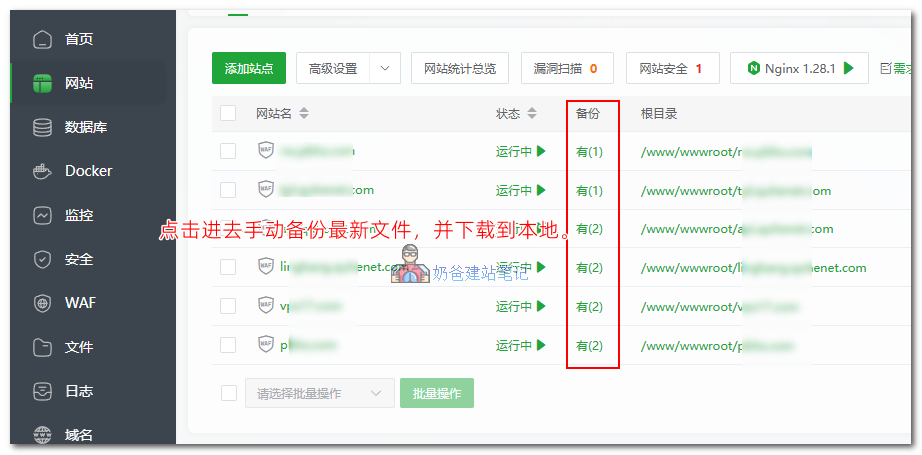
First, go to the website list, click the backup column behind the website, manually back up the latest website files, and then download them to your local machine.
If you have multiple servers, you can also directly use the wget command on another server to download. If you don't know how, you can ask AI.

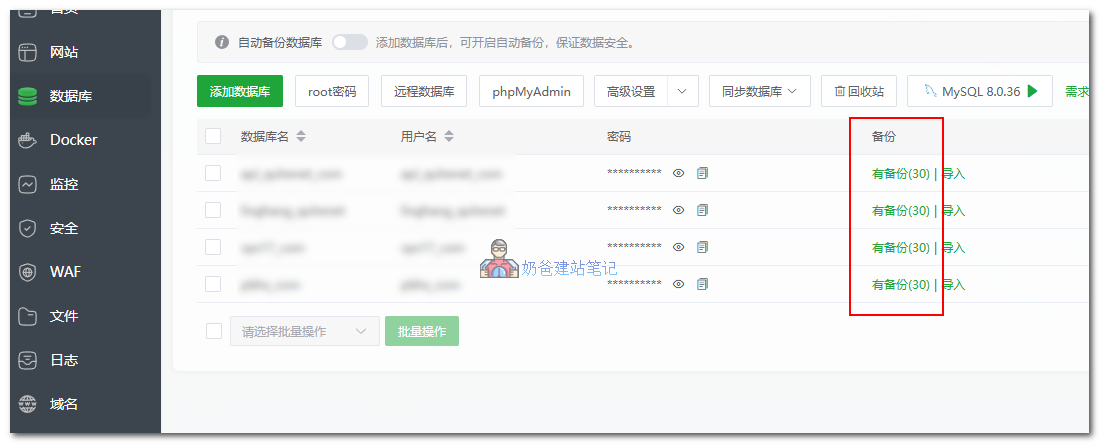
Then go to the database, create the latest backup for each database, and download them to your local machine.
Step 2: Reinstall the VPS system and install WP Panel
If you are not reinstalling the WP Panel on the current VPS, you can skip this step and go directly to Step 3 to restore the website data.
When reinstalling the system, choose the Debian 13 operating system, other systems are likely to have bugs.
You can reinstall in the server backend, or directly in SSH usingbin456789\/reinstall: One-click DD\/reinstall script (One-click reinstall OS on VPS)to directly reinstall a clean original Debian 13 operating system.
After reinstalling the system,SSH login to VPS, directly copy the following command and execute it, waiting for the WP Panel installation to complete.
apt-get update && apt-get install -y wget ca-certificates && wget -qO- https://raw.githubusercontent.com/naibabiji/wp-panel/main/install.sh | bashStep 3: Restore the WordPress website and database
1. Create a Website

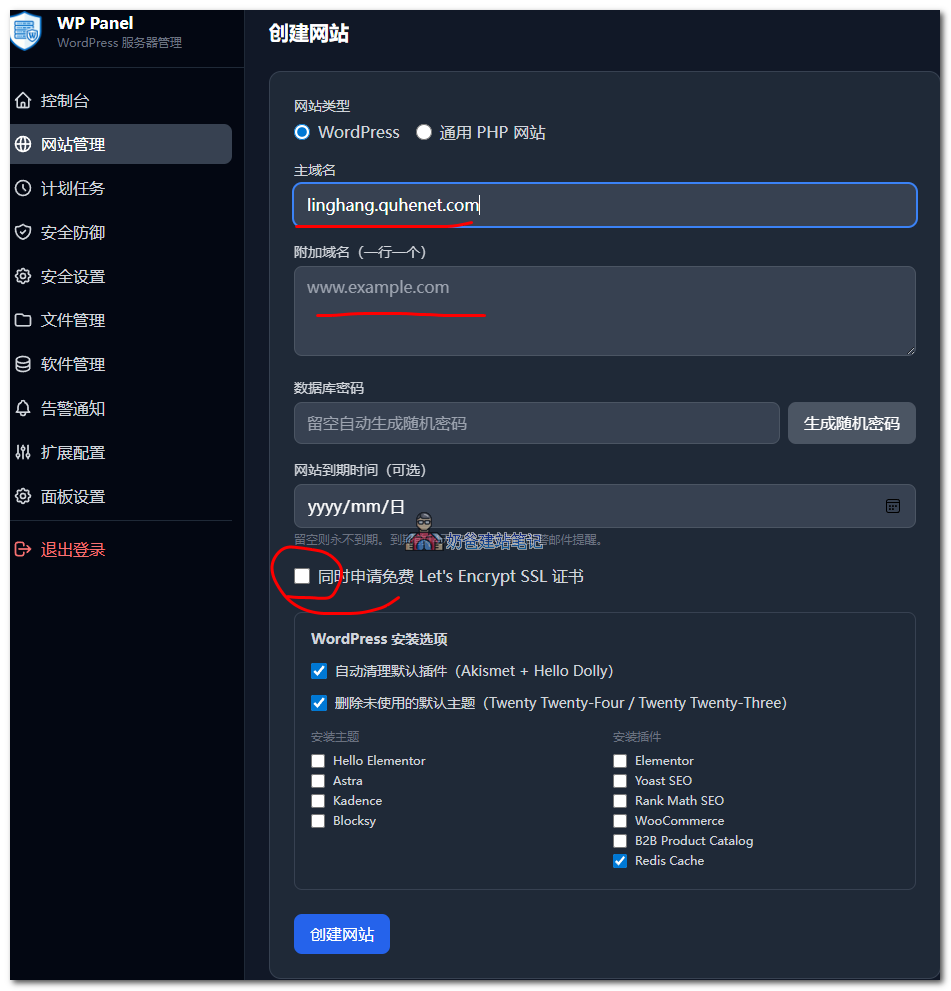
LoginWP Panel → Website management → Add Website
In the website interface, fill in the primary domain. If you need to bind a www website domain, fill it in the additional domain field. Also check the option to apply for an SSL certificate. Click the Create button.
2. Restore website files

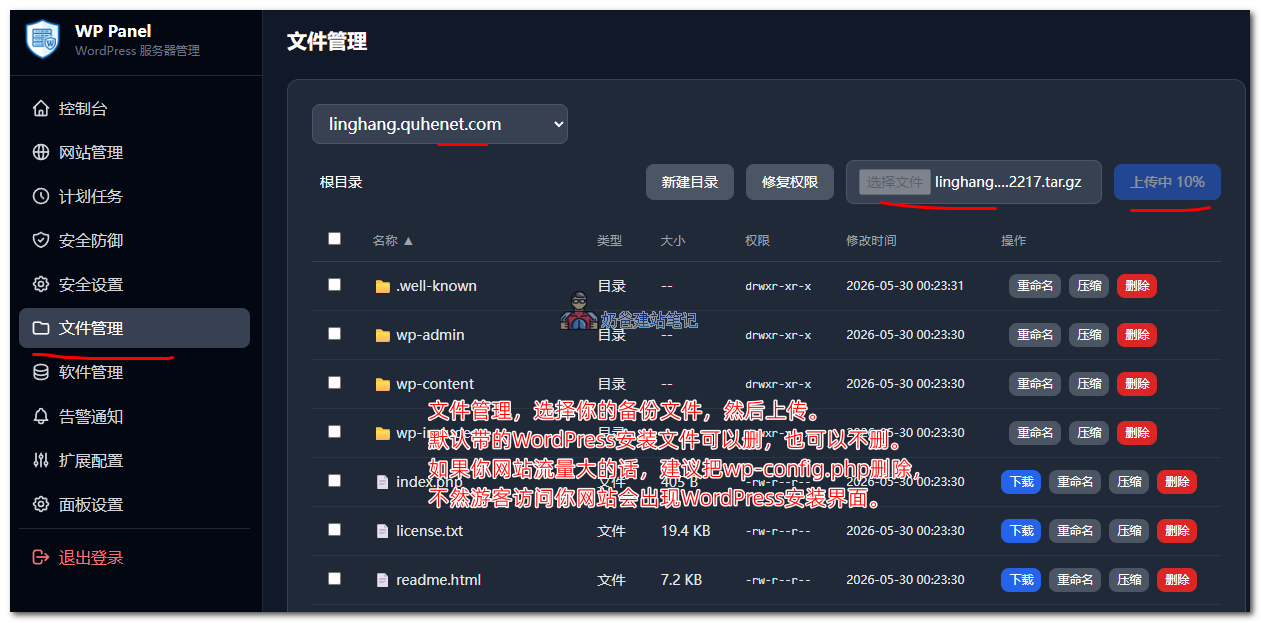
File management, select your backup file, then upload.
If your website has high traffic, it is recommended to delete the wp-config.php file from the installation files created by default when creating the website. Otherwise, visitors to your website will see the WordPress installation interface.
After uploading, extract your archive and directly overwrite the existing files.
Finally, click the „Fix Permissionsbutton.
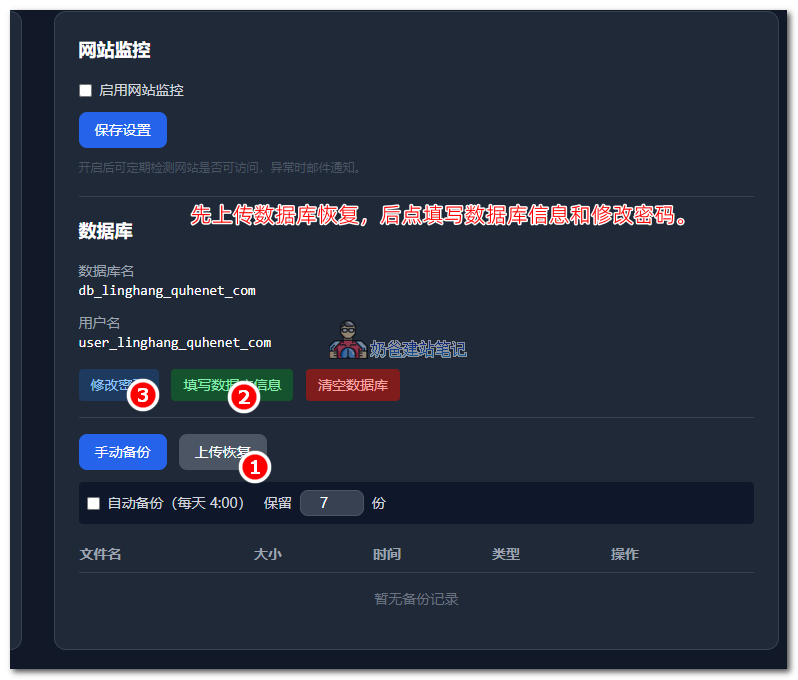
3. Restore the Database

Website Management → Website Details → Database Upload and Restore.
After uploading, click the „Fill in Database Information“ and „Change Password“ buttons in sequence.
If everything goes smoothly, the website should be accessible normally, and the migration is complete.
Note: This tutorial is applicable for restoring a website from Baota Panel to WP Panel on the same server, so no domain resolution operation is needed. If you are restoring to a different server, you need to resolve the domain and wait for it to take effect before successfully applying for an SSL certificate.
Optimization after restoring the website
With just three simple steps, you can switch your website from Baota Panel to WP Panel.
Now that you are using WP Panel, you must not miss the optimization features built into the panel.
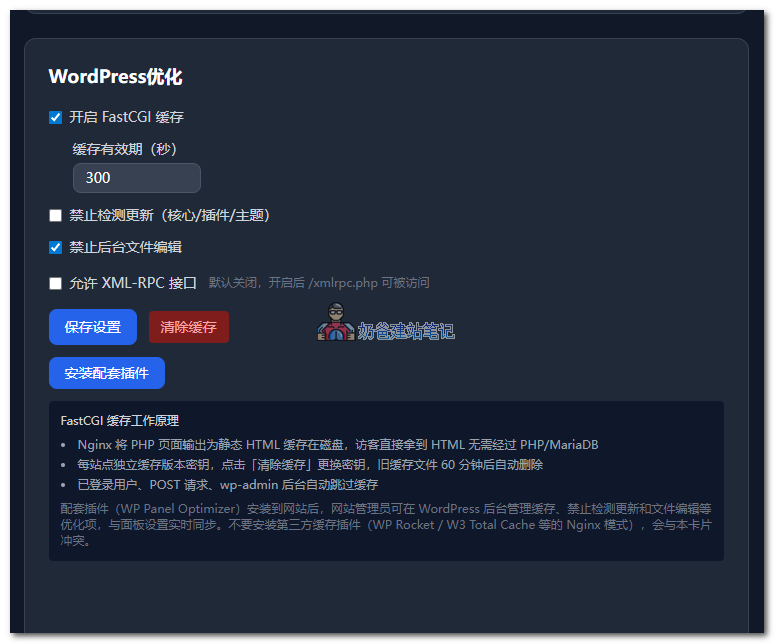
1. WordPress Optimization

Go to the website details page, find WordPress Optimization, enable Nginx FastCGI Cache, and install the accompanying optimization plugin. Go to your website backend and delete the previous caching plugin.
Additionally, if you did not uncheck the Redis Object Cache that was selected by default when installing the website, you can also enable this plugin and turn on database caching.
If you need to optimize CSS and JS compression, you can install Autoptimize.
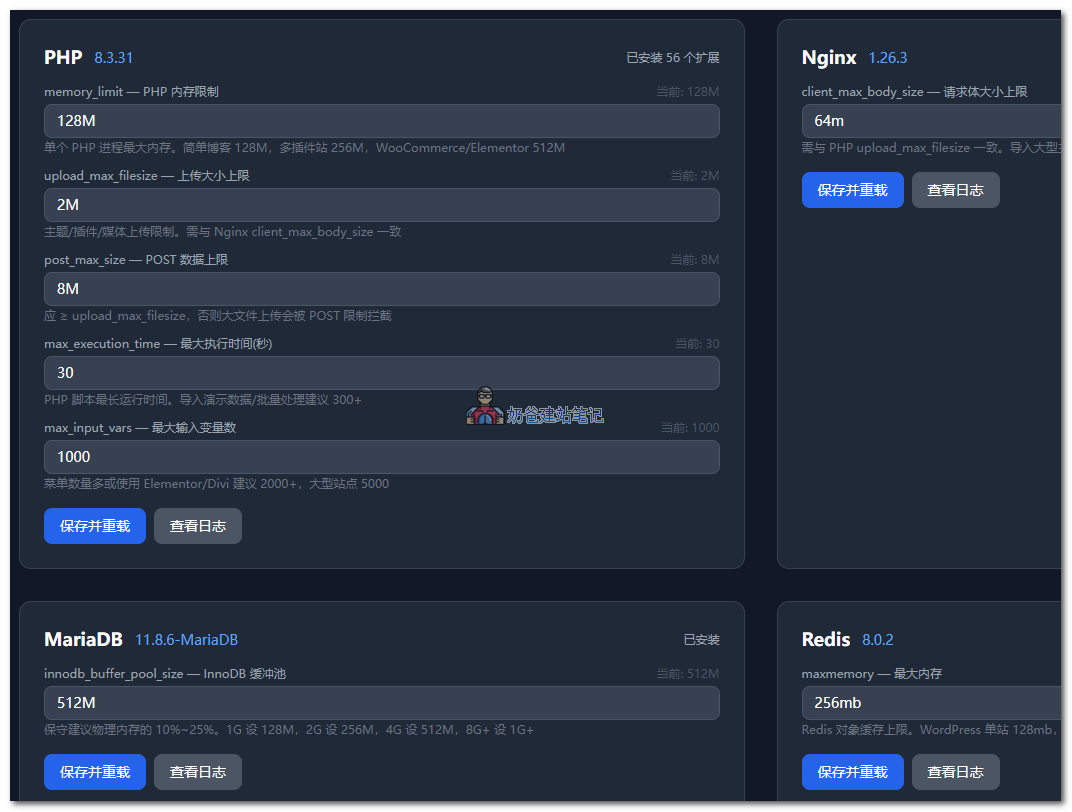
2. Server Optimization

- Go to the Software Management interface. In the upper right corner, there are configuration suggestions. Fill in appropriate values based on your server configuration.
- Go to Alert Settings, configure SMTP or Webhook push, so the server notifies you promptly when there are messages.
- If you have two VPSs, enable remote backup in the panel settings. If not, go toVPS Recommendationsand choose an inexpensive machine as a backup server.
- Enable automatic database backup in the website details page;
- Enable logging in the website details page. It is recommended to select "Only Exceptions" first. If the server is frequently attacked, select "Record All";
- Create scheduled backups for the website in Scheduled Tasks. You can back up every half month or every month. Incremental backup is recommended;

Comments are closed
The comment function for this article is closed. If you have any questions, please feel free to contact us through other channels.