
🚀 Is building a website too difficult? Let me guide you step by step—Learn about the 「Naibabiji WordPress Website Building Coaching Service」 →

Tutorial on Downgrading to an Older Version of WordPress After Upgrading to the Latest Version

If you find the latest version of WordPress unfamiliar or encounter bugs after upgrading, how do youdowngrade to an older version? This article introducesthe method for installing an older version of WordPress.

Tutorial for installing any older version of WordPress using WP Downgrade

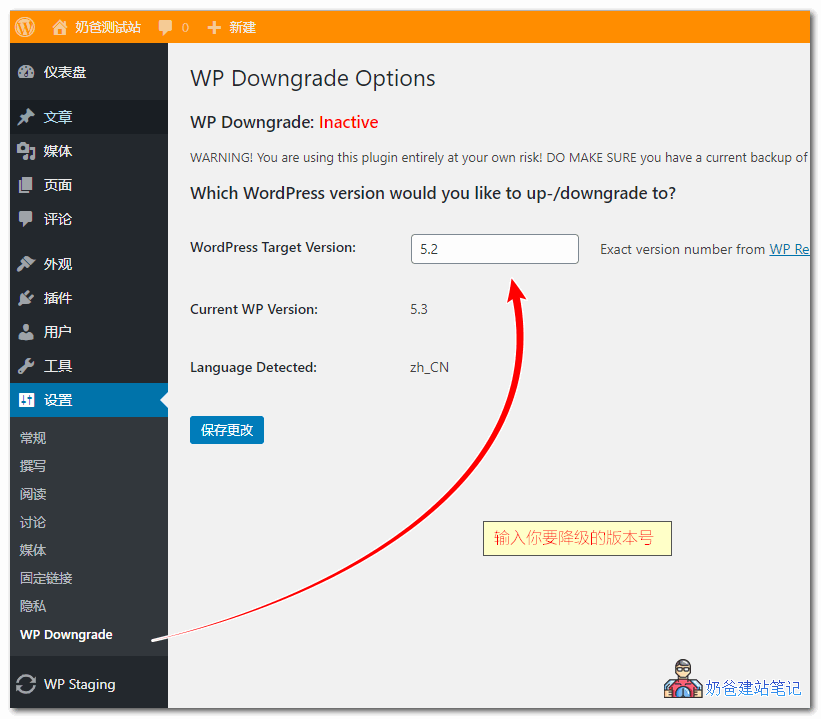
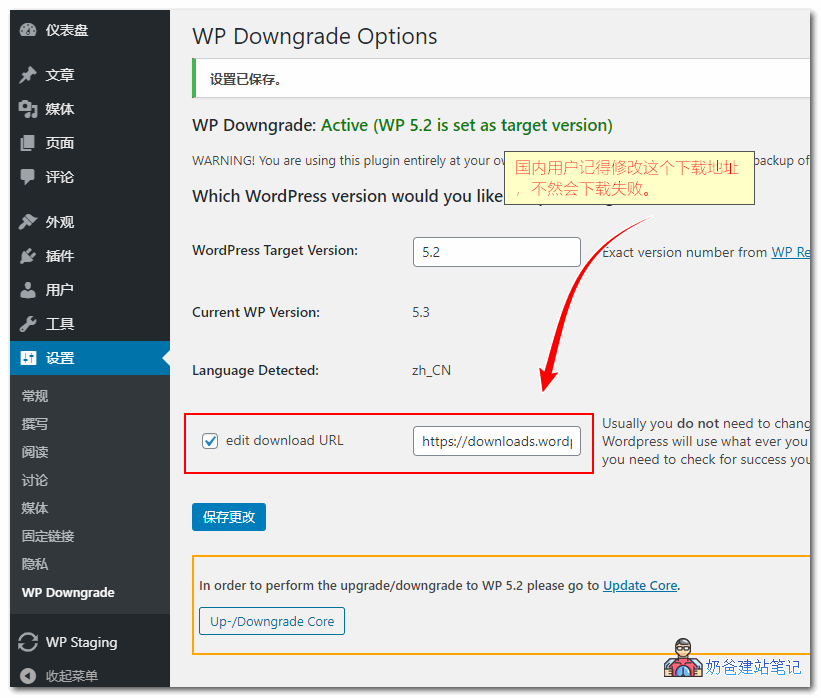
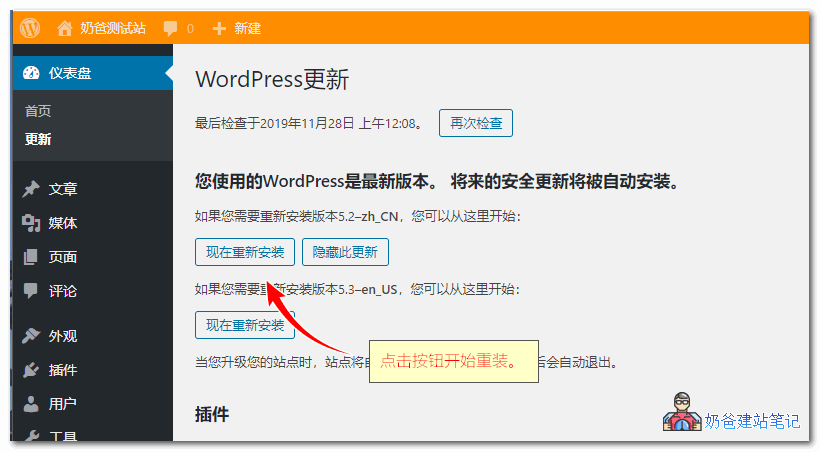
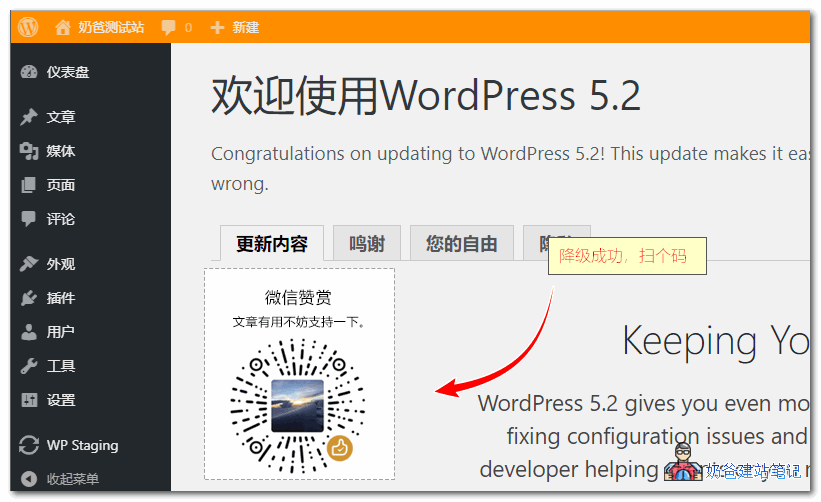
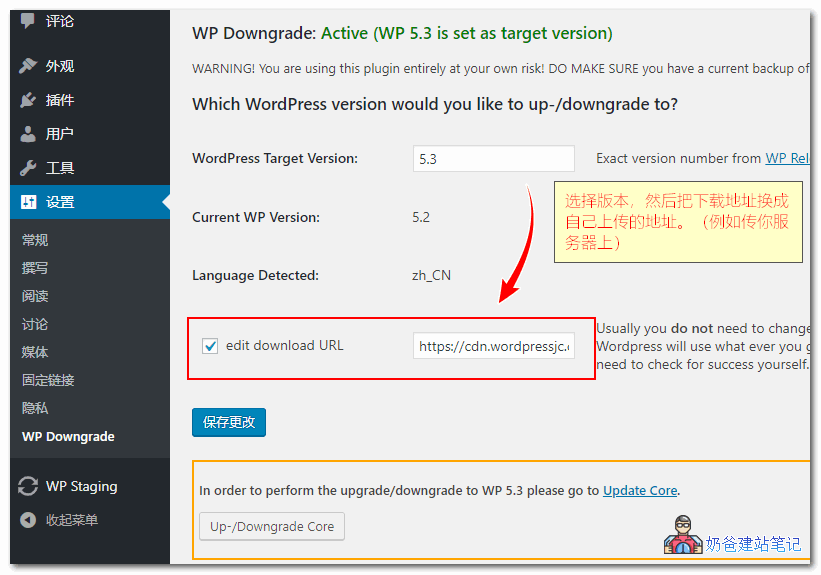
WP Downgrade is a fantastic tool that can help you install previous versions of WordPress. Let's see how to operate it.1. Install WP Downgrade | Specific Core VersionYou can search and install it from the WordPress backend, or download it from the link below and upload it for installation. (WordPress Plugin Installation Tutorial_Complete Guide to Popular Essential PluginsOfficial Download Cloud Storage Download2. After installing the plugin, go to WP Downgrade in the settings, then enter the version you want to downgrade to, such as 5.2 (for supported downgrade versions, you canview here.)Tip: For safety,it is recommended to back up your website data before proceeding. If you don't know how, refer to ????:Automatically backup WordPress websites using plugins WordPress降级安装老版本教程3. After clicking the save button, an option to edit the download URL will appear. Domestic users should check it and enter a URL that can be smoothly downloaded from a domestic server, such as your own server.WordPress降级安装老版本教程4. Go to the WordPressUpdateinterface, clickReinstall NowButton.WordPress降级安装老版本教程5. If everything goes smoothly, the downgrade to the older version is successful.WordPress降级安装老版本教程

Clever Trick: Using WP Downgrade to Install the Latest WordPress Version

That's right, besides installing older versions, you can also use WP Downgrade to install the latest WordPress, solving the issue where domestic servers fail to auto-update due toWordPress 429 Too Many Requestserrors. Download the latest WordPress installation file from the internet, upload it to your server, then change the URL to your server's. Proceed with the update, and it will succeed. WP Downgrade安装新版本WordPress  

🚀 Still feeling confused after reading the tutorial? Let me guide you step-by-step.

「Naibabiji WordPress Website Building Coaching Service」—From choosing a domain and buying hosting, to installing a Theme and publishing content, I「ll coach you through every step, helping you avoid detours and reach your goal directly.

👉 Learn about the Website Building Coaching Service
🔒

Comments are closed

The comment function for this article is closed. If you have any questions, please feel free to contact us through other channels.

×
二维码

Scan QR Code to Follow

AI Website Building Assistant

🤖
Hello! I am the Naibabiji AI Assistant. How can I help you?
Quick Consultation: