

只要是使用WordPress搭建的网站,就会使用到Gravatar头像。Gravatar是一个全球公用的头像系统,只要你设置了一个Gravatar头像,那么在支持Gravatar系统的网站上都会自动显示你设置的头像。
不过如果你服务器是使用的国内的,那么加载过多的Gravatar头像会让你网站速度变卡变慢。原因是Gravatar服务器在国内访问速度不理想。
所以为了加快WordPress的速度,国内服务器搭建的网站有必要禁用Gravatar头像,或者缓存Gravatar头像。
WordPress禁用Gravatar头像
想要禁用Gravatar头像非常方便,如果你博客的留言数量比较多,建议禁用,毕竟过多的头像图片也会拖慢你网站网速。
禁用方法如下:
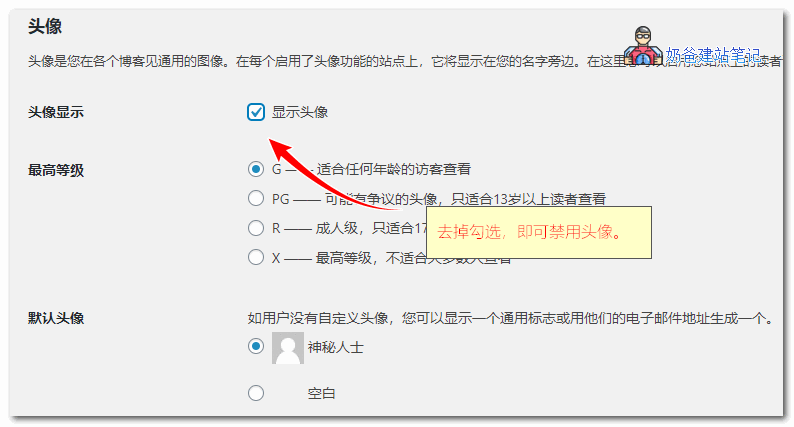
1、WordPress后台,选择设置,讨论设置。
2、去掉显示头像的勾,就在WordPress上彻底禁用了Gravatar头像功能了。
缓存Gravatar头像
当然,如果完全禁用了Gravatar头像,你觉得评论框不好看,那么我们可以通过缓存Gravatar头像的方法来加速,把Gravatar头像缓存到本地服务器,这样用户就是从你服务器读取的头像,速度会快很多。
网上有缓存Gravatar头像代码版本,不过好多都失效了,而且不是对于每个主题都有效,新手朋友可能不知道怎么修改,所以这里推荐两款插件来缓存。
缓存Gravatar插件一:Harrys Gravatar Cache
插件下载地址:https://wordpress.org/plugins/harrys-gravatar-cache/
缓存Gravatar插件二:FV Gravatar Cache
插件下载地址:https://wordpress.org/plugins/fv-gravatar-cache/
使用插件缓存的话非常简单,安装插件,然后启用,进行设置 就可以了。
如果你使用了Hummingbird这款优化插件的话,也支持头像缓存。
最后,如果你开启了Gravatar头像,有些主题默认是不会给头像添加ALT描述的,你可以自己修改代码实现添加,这样对seo友好一点。
方法:给WordPress评论中的Gravatar头像图片添加ALT属性
本文是全系列中第10 / 20篇:WordPress优化
- 最简单提高WordPress网站速度和性能的方法
- 网站速度慢?10条WordPress优化方法帮你提速
- 轻量级WordPress优化插件推荐:Performance 1.9.1(附下载地址)
- WordPress速度优化之如何减少HTTP请求
- 网站速度跟什么有关_影响网站速度慢的8个方面
- WP Rocket 3.12.3.2破解版下载,有正版授权出售,安全
- 使用又拍云给WordPress网站加速_新版插件教程
- 想优化WordPress的打开速度?让gtmetrix来帮忙
- WordPress插件太多速度慢怎么办?使用Asset CleanUp按需加载插件
- WordPress怎么禁用Gravatar或者缓存加速Gravatar头像
- 很好用的WordPress优化速度插件推荐:Hummingbird
- #建站#配置Nginx fastcgi_cache缓存加速WordPress网站
- 使用WP-Optimize优化你的WordPress数据库
- 优化WordPress性能必备工具:Query Monitor
- 多功能的WordPress优化插件:WPJAM Basic
- 功能使用简单的WordPress缓存插件:Breeze
- WordPress评论点击延迟加载插件:Lazy Load for Comments
- 优化WordPress上传图片速度几种方法,减少数据库查询
- WordPress全站静态缓存优化插件WP2Static
- WordPress优化小技巧,禁用Jquery Migrate文件